Creating and Screening a Vessel
Last updated: November 20, 2026
A vessel Customer lets you screen a vessel's name against maritime-specific risks.
Note: Vessel screening is also available via the Mesh API for automated workflows.
1. Create a Vessel Customer
To add a new vessel for screening, follow the standard creation workflow:
Select Customers from the main header.
Select Create, then click Create vessel from the dropdown menu.
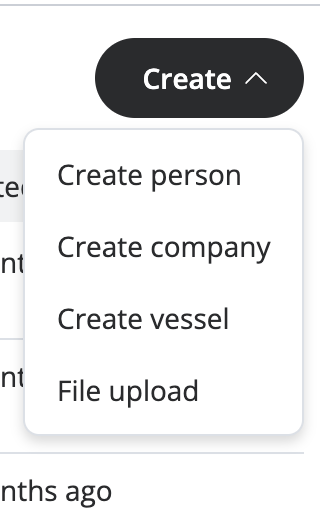
Create vessel in the Create menu on the Customers page
Complete the vessel schema fields:
Customer identifier and Name are mandatory.
Optional fields such as IMO, MMSI, and Call sign improve profile completeness. On accounts with IMO matching, the IMO and MMSI numbers are also matched exactly. A renamed vessel is still flagged.
A profile with the same IMO or MMSI number scores at least 95. If the collection's match threshold is 95 or lower, it is returned even when the names differ.
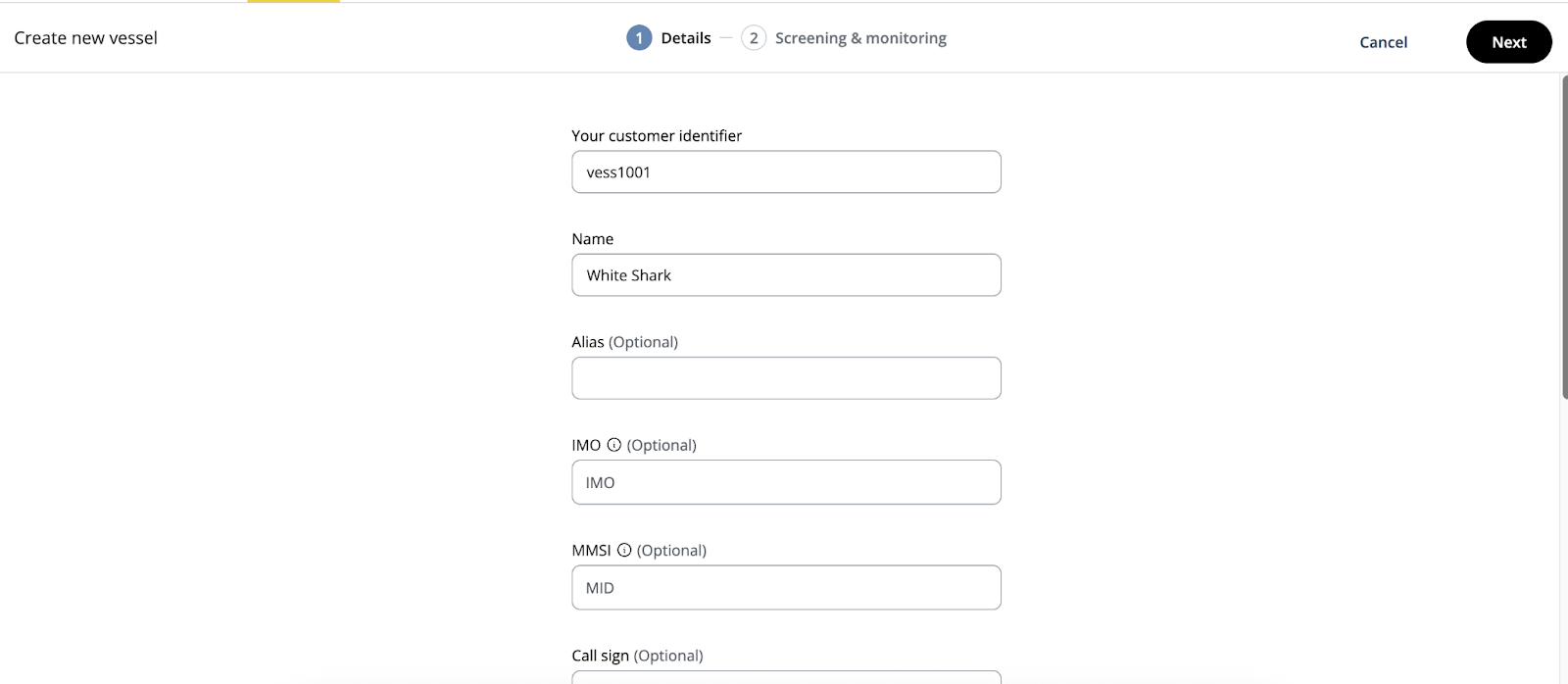
Click Next to proceed to configuration.
Select the Screening configuration you wish to use for this vessel and click Create.

2. Initial screening and monitoring
After clicking create, Mesh performs an initial screen.
Processing Status: You can track progress in the blue Processing customer box.
No Match: If no hits align with your configuration’s risk types, sources, or match threshold, the Customer status will change to Active.
Monitoring: You may manually toggle Ongoing Monitoring on or off from the vessel's profile page once the initial screen completes.
3. Assess Vessel screening hits
If screening identifies potential matches, the vessel will appear in the Cases tab.
Open the Case view to see a list of profiles the vessel matched against.
The Case view displays the Case type, the Customer ID, Customer name, risk type(s), number of items to remediate and the case status.

Click a case to view its details.
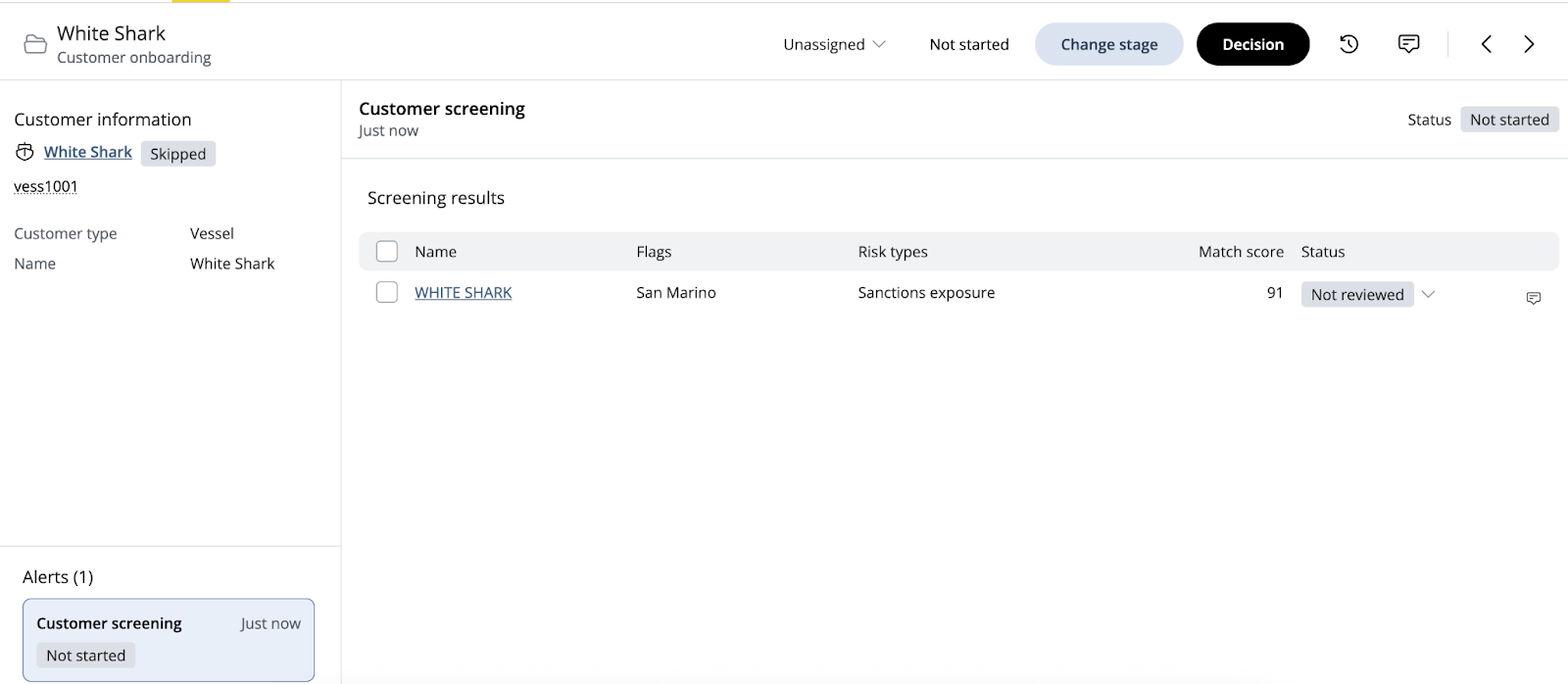
Case details with the grid of matched profiles
The results grid displays the profile name, associated country (flag), risk type, and match score.
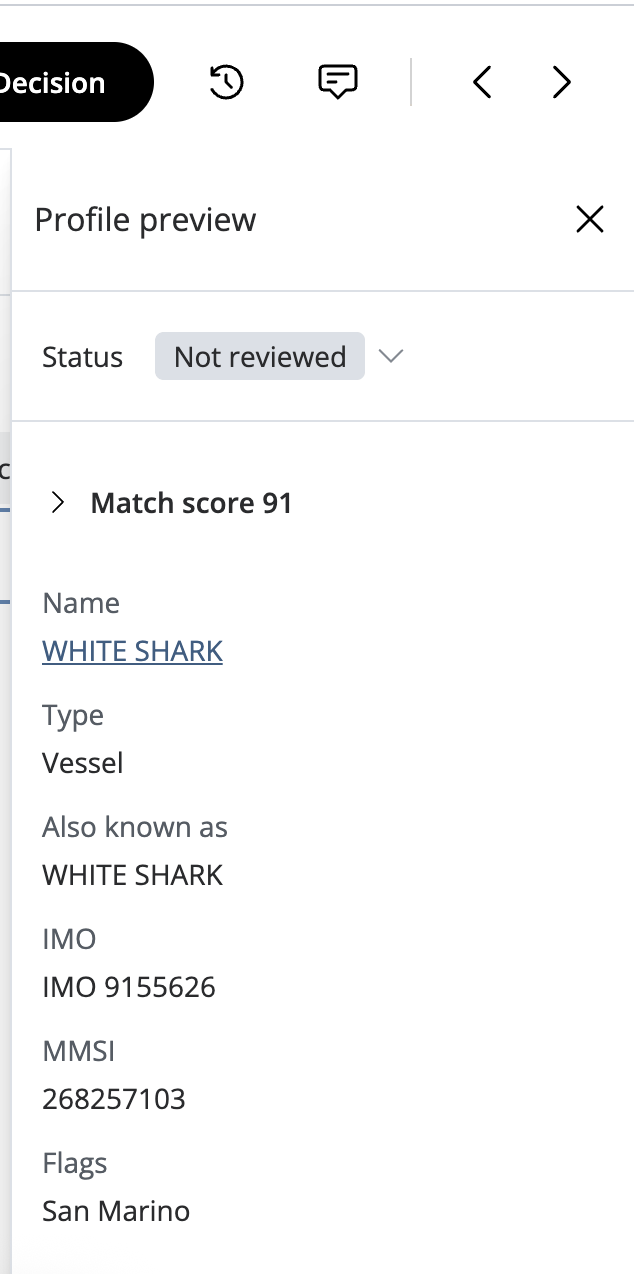
Analyze the Match Score: Click the row (avoiding the name) to open a Profile preview.
Click the chevron next to the Match score to view Influencing factors. These include:
Exact names
Name rarity
Exact identifiers, when the IMO or MMSI number matches, on accounts with IMO matching
4. Remediate and close Cases
To review the risk in full, click the Profile name to open the full profile page.
Detailed Information: View specific sanction data, including the list name, designation dates, and legal basis.
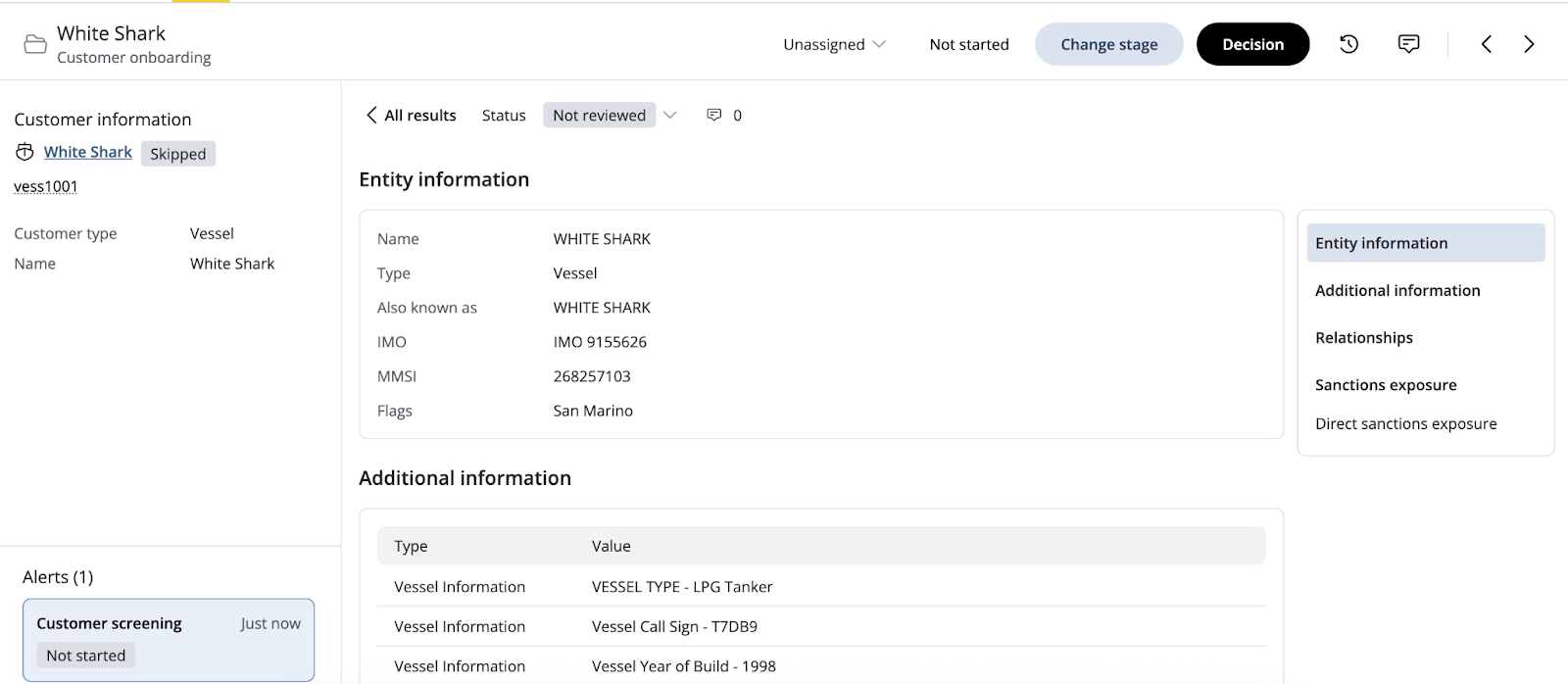
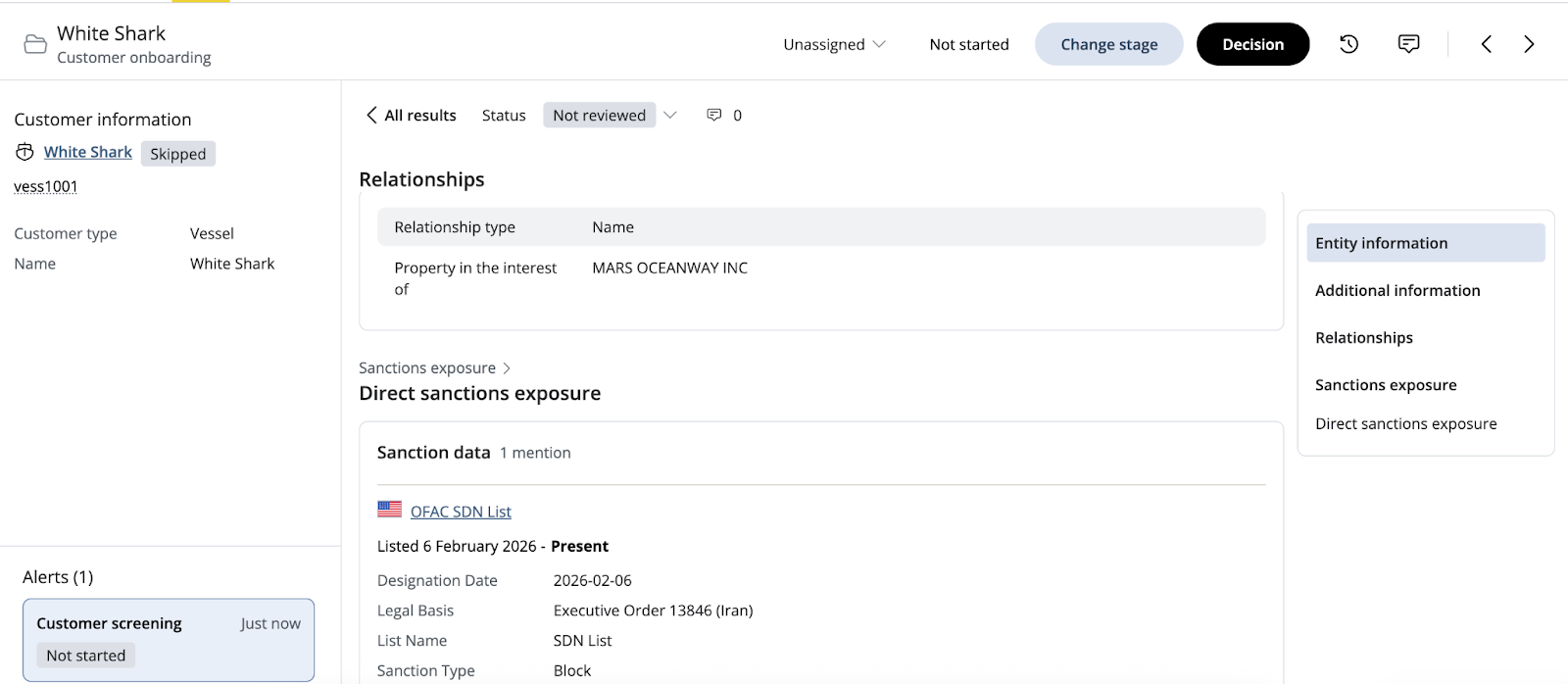
Assign Status: Use the Status dropdown to mark the result as a True positive or False positive.
Completion: Once all cases are resolved, the Customer status will move from Processing to Active.