Video: Review and remediate a monitor case
Last updated: October 13, 2026
In this guide, you will learn how to review and remediate a monitor case in Mesh.
When logging in to your account, please ensure you select the correct region, which will be one of the following:
Australia: https://au.mesh.complyadvantage.com/
You can find the link to your region in the onboarding email you received (look for the "Welcome to ComplyAdvantage" email).
If you can't find the email, don't worry! You can always contact our support team at support@complyadvantage.com.
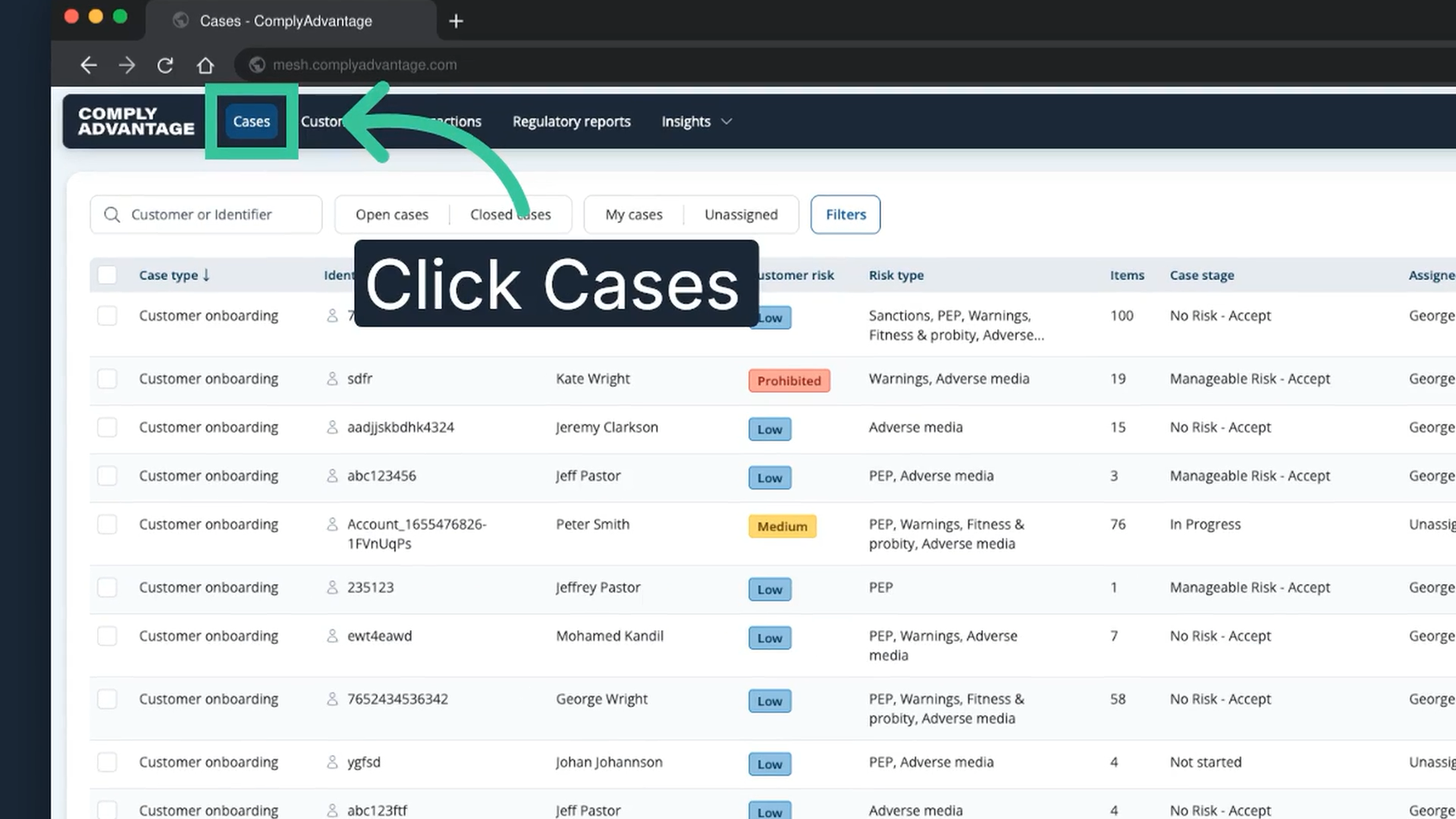
1. Click "Cases"
Go to the "Cases" tab, where you find all cases in your account.
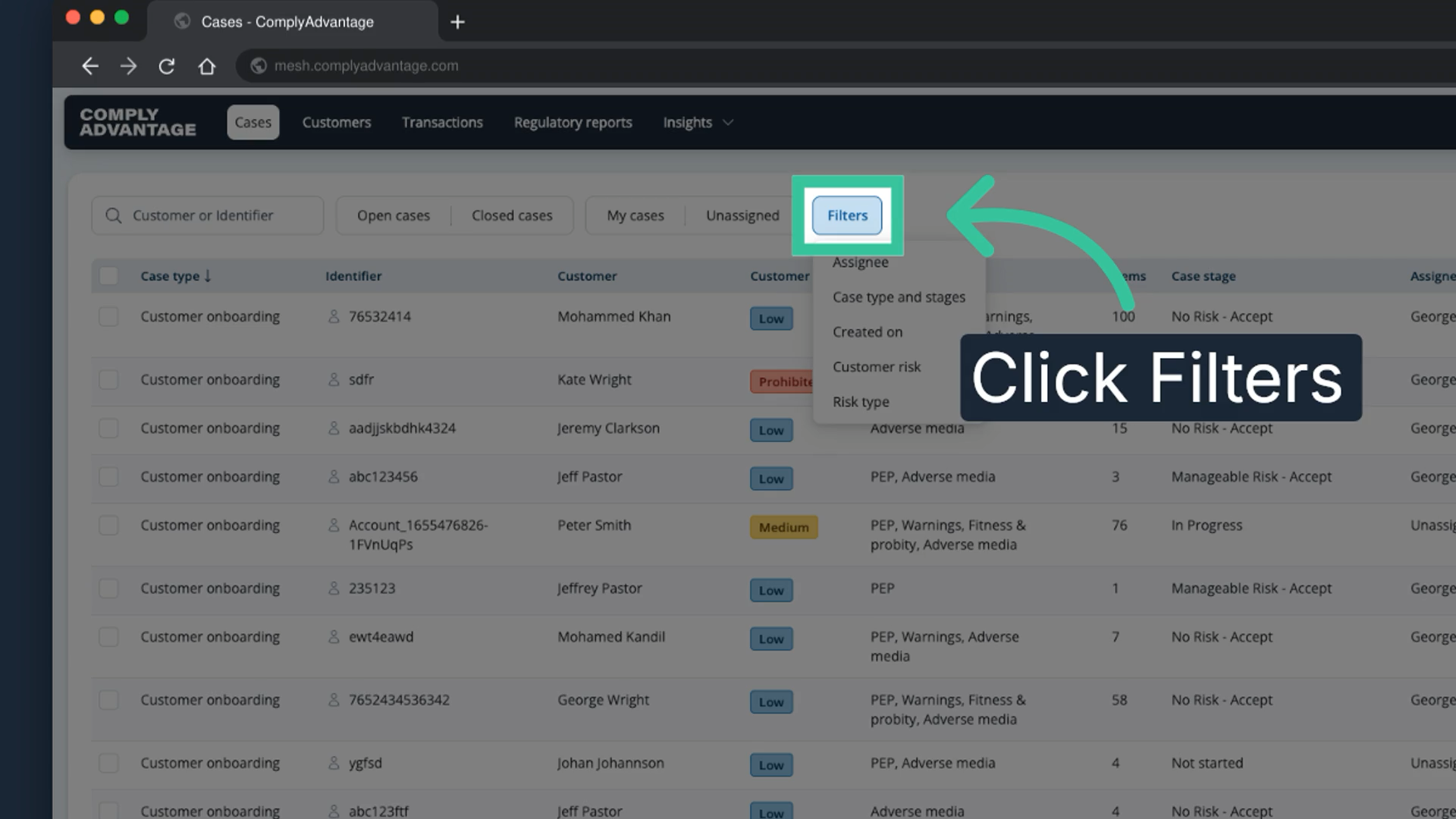
2. Click "Filters"
To find monitoring cases quickly, click "Filters".
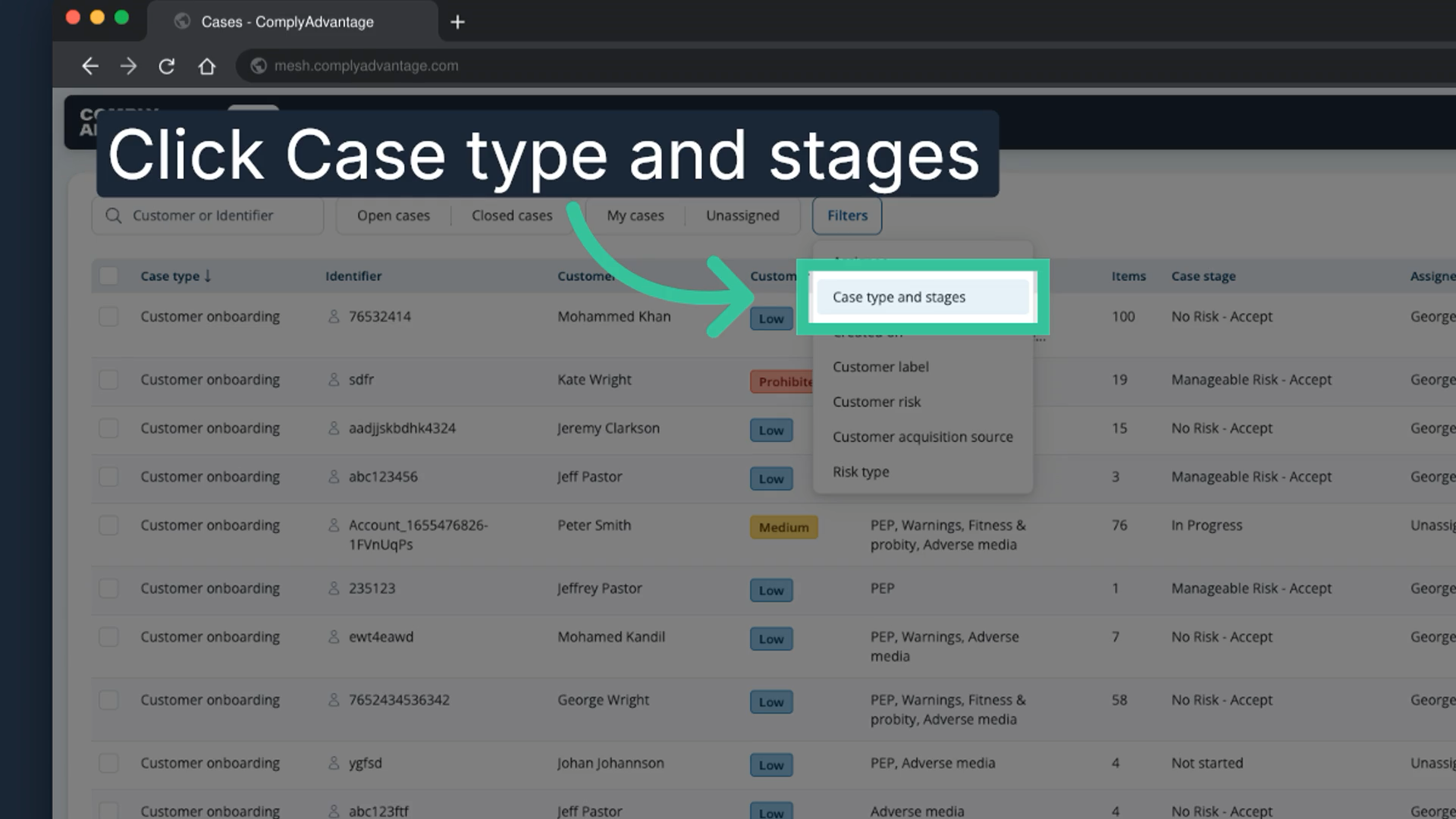
3. Select "Case type and stages"
In the filter menu, select "Case type and stages".
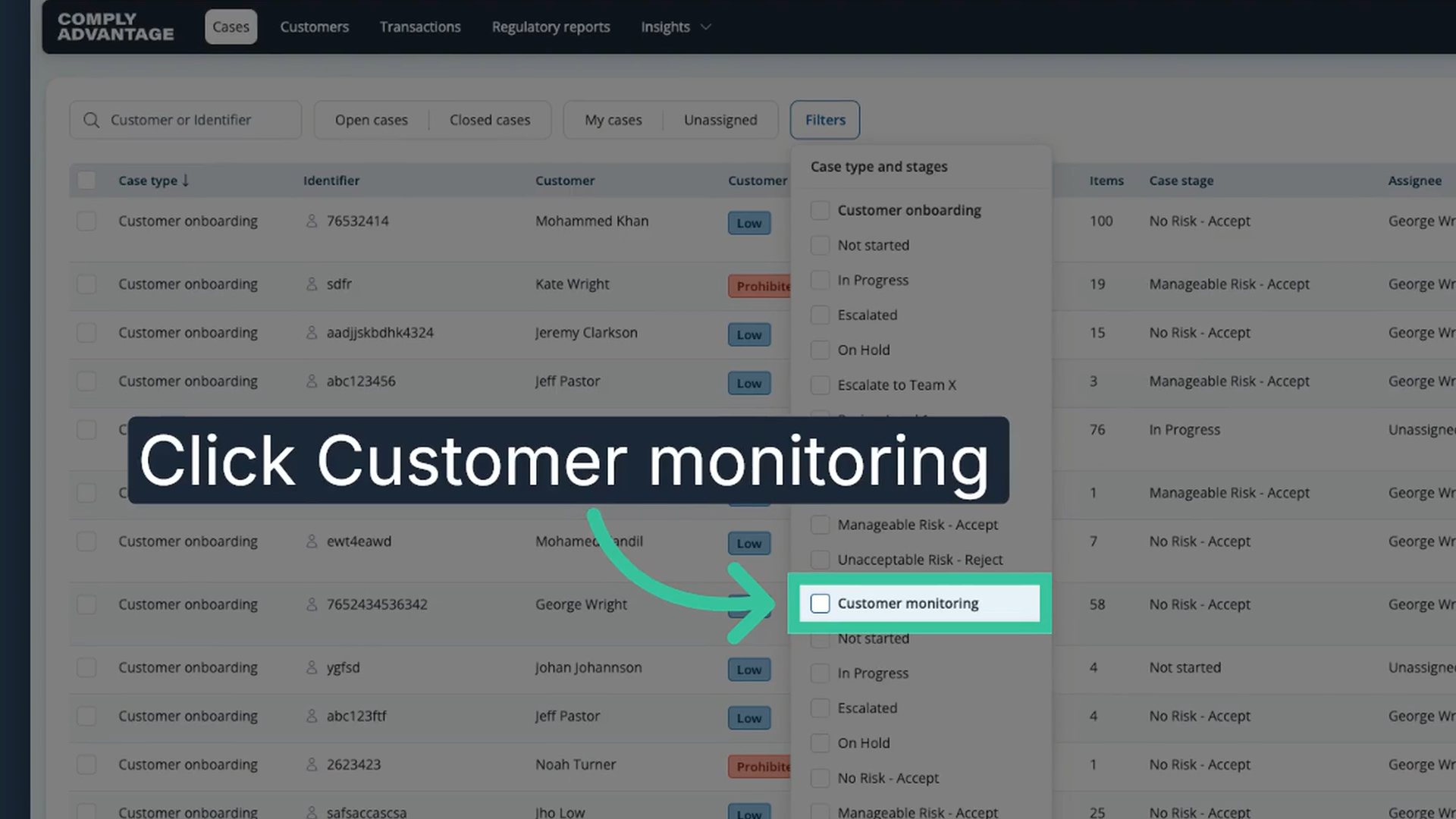
4. Tick "Customer monitoring"
Tick the "Customer monitoring" box to show only monitoring cases.
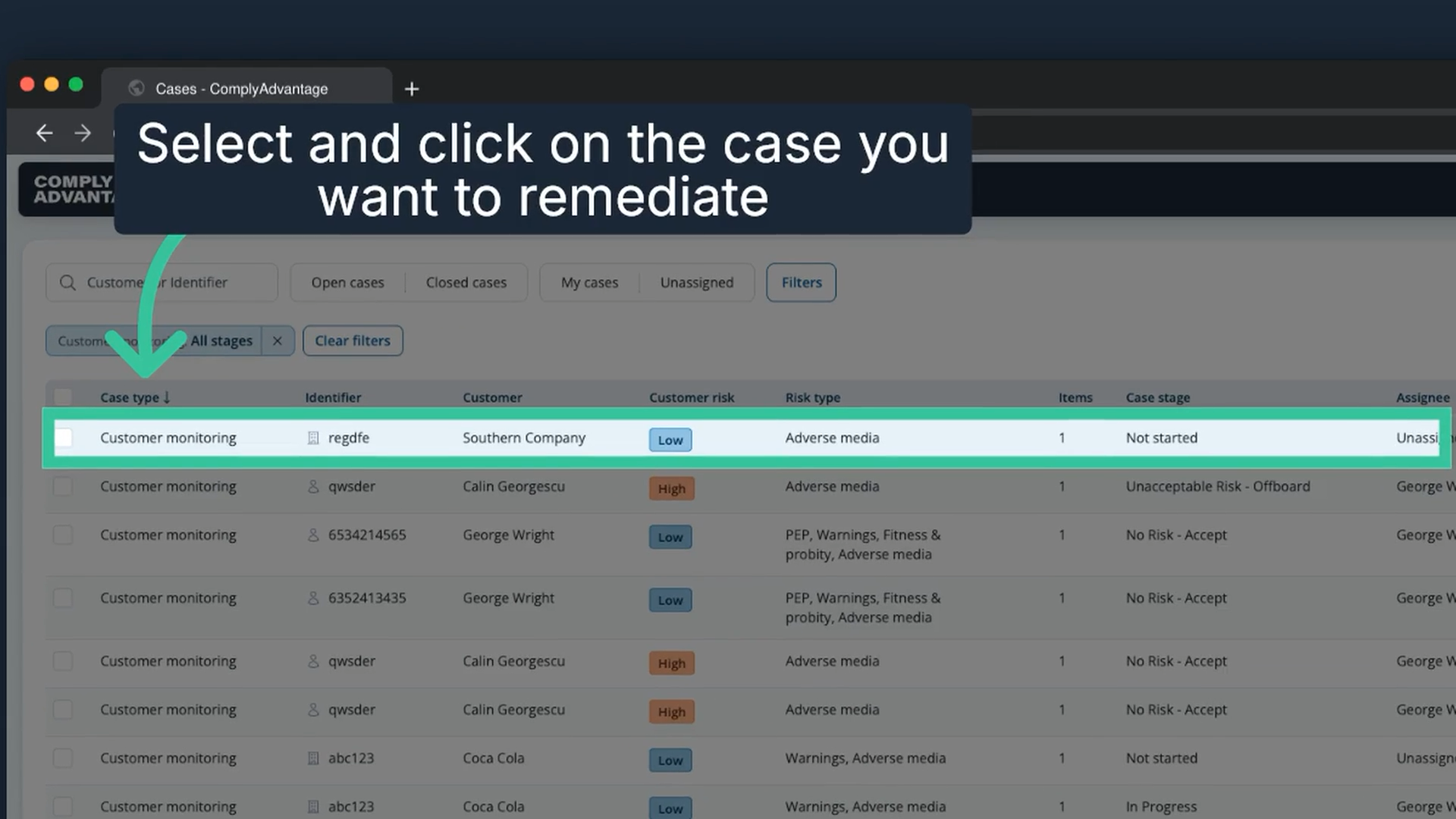
5. Click the monitoring case
Once you have found the monitoring case you want to remediate, click on it.
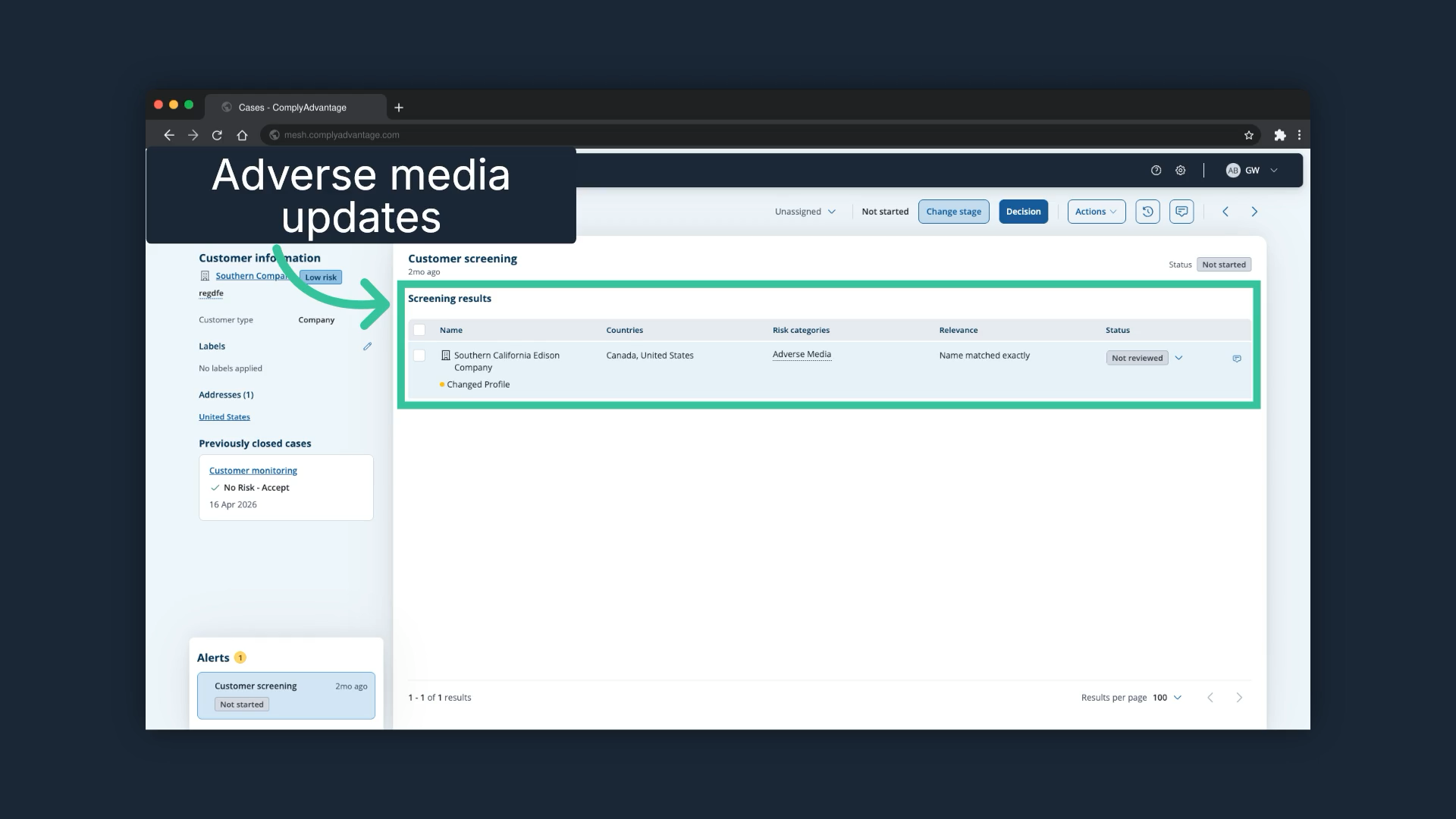
6. Review the screening results
The Screening results show one update: new adverse media matches on the profile matched to this customer.
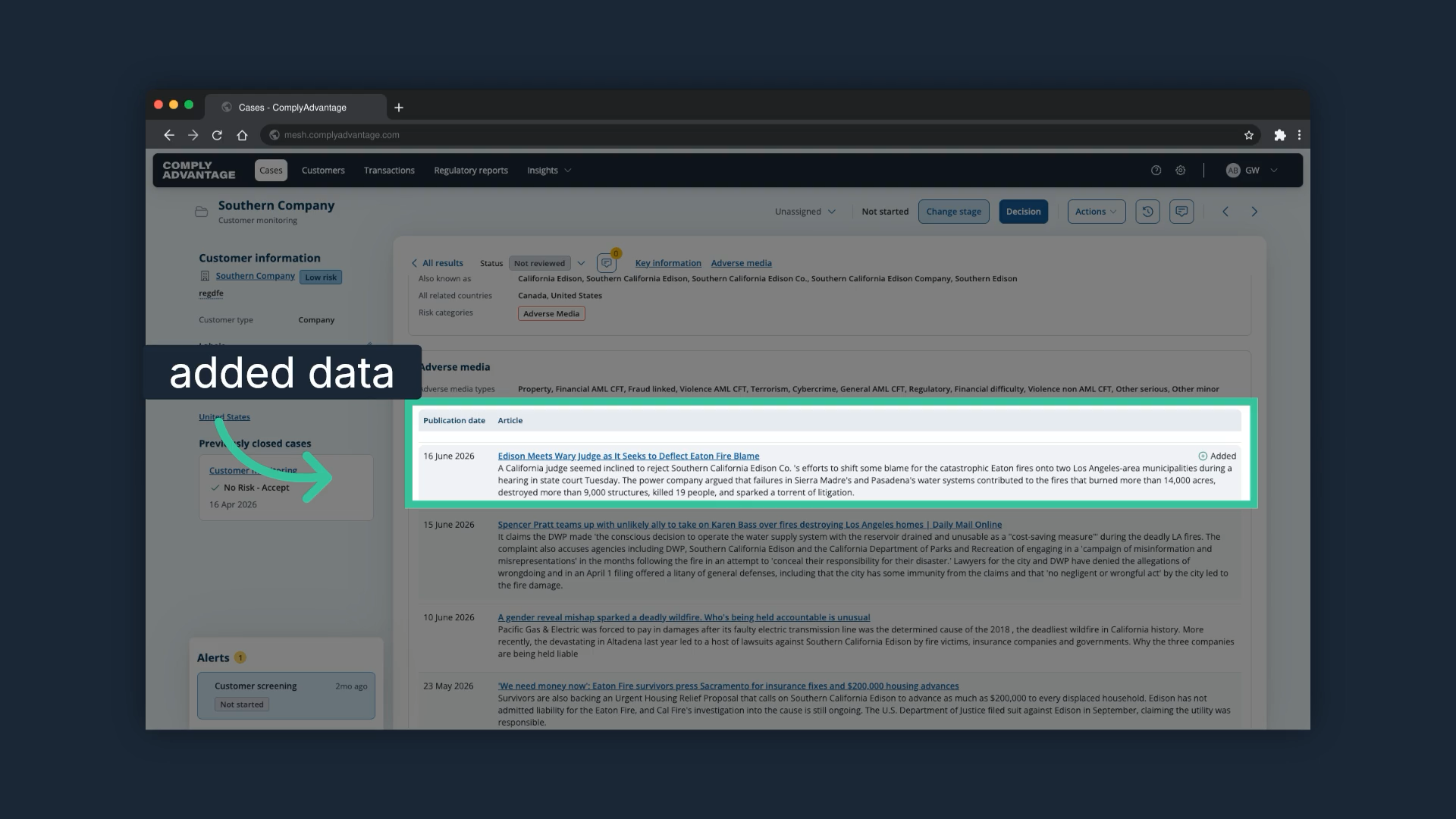
7. Click the screening result
Click the result. All new data sources for this profile appear at the top.
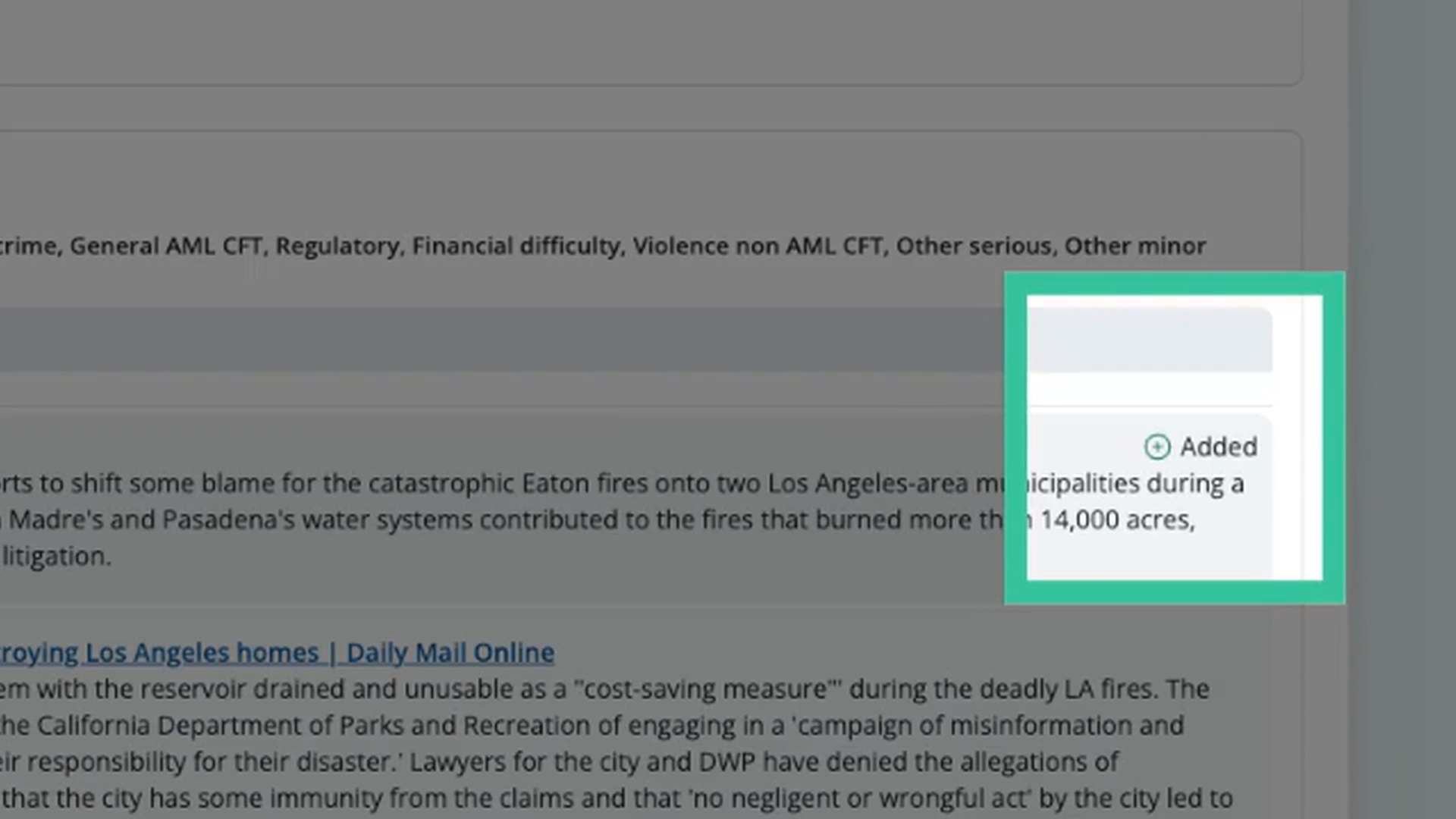
8. Look for the "Added" icon
New data is easy to identify by the "Added" icon on the right.
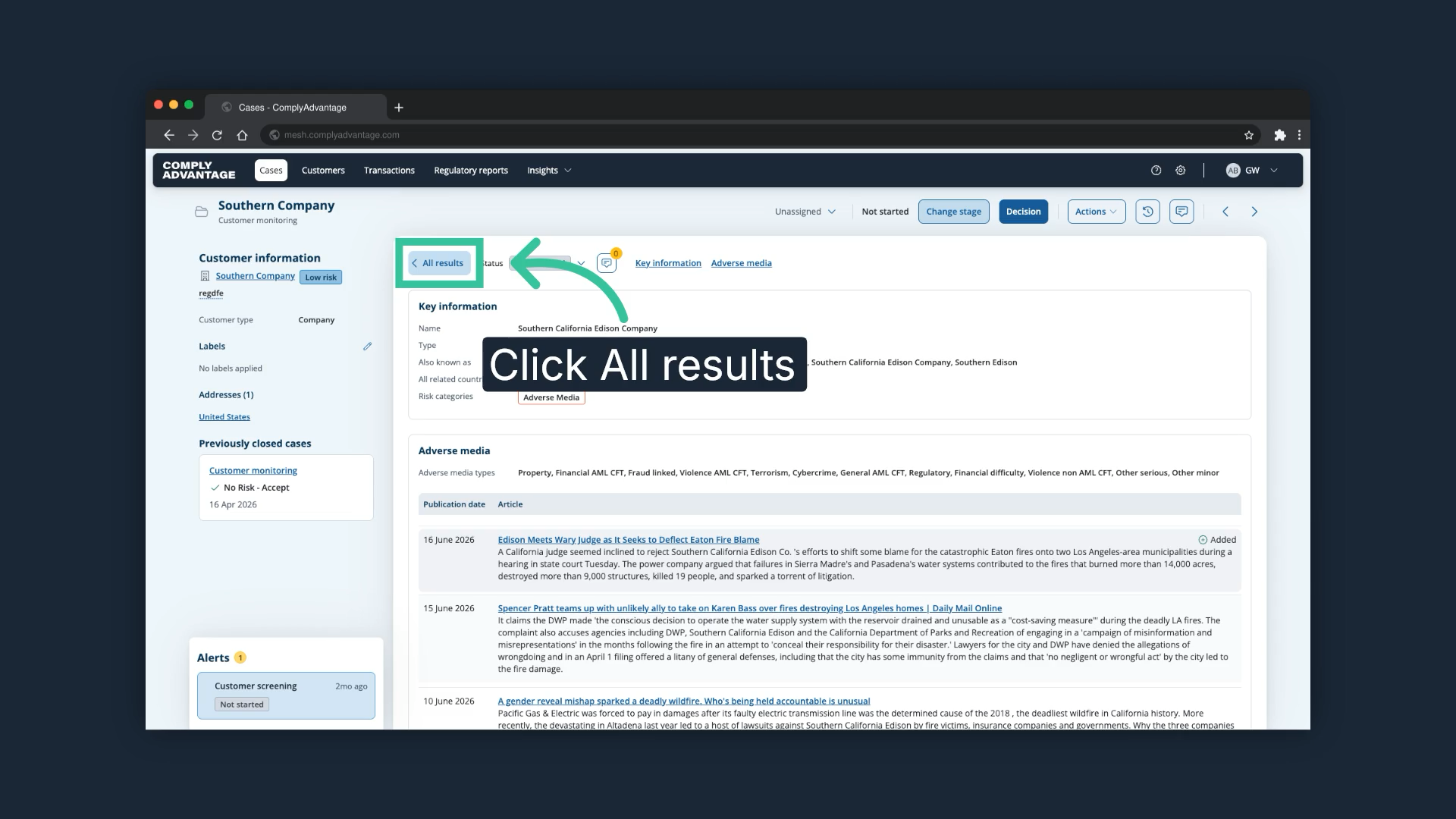
9. Click "All results"
Once you have analysed the new information for this risk profile, click "All results" to return to the case overview.
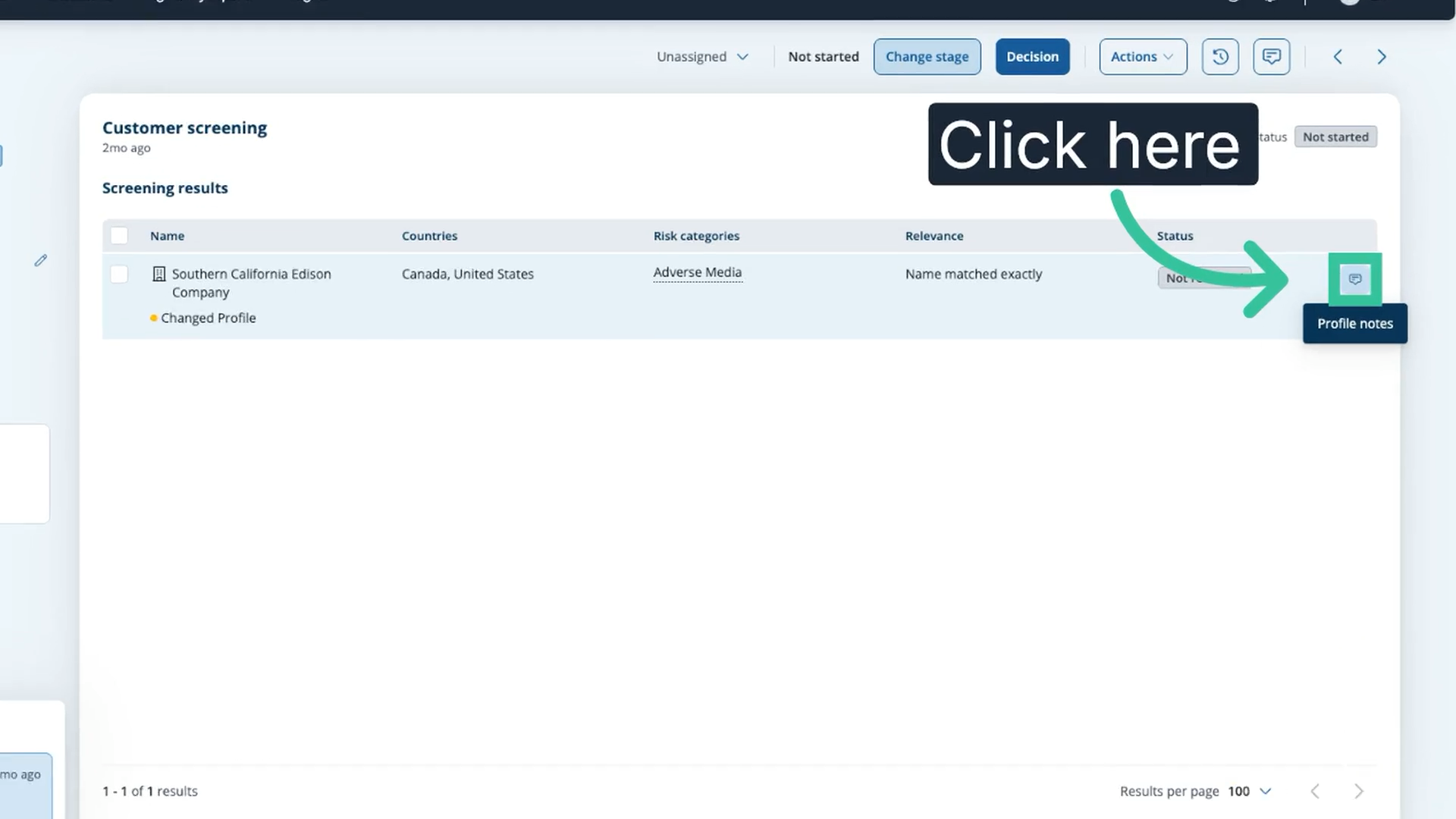
10. Click the profile notes icon
From the case overview you can act on each risk profile directly, for example by adding profile notes.
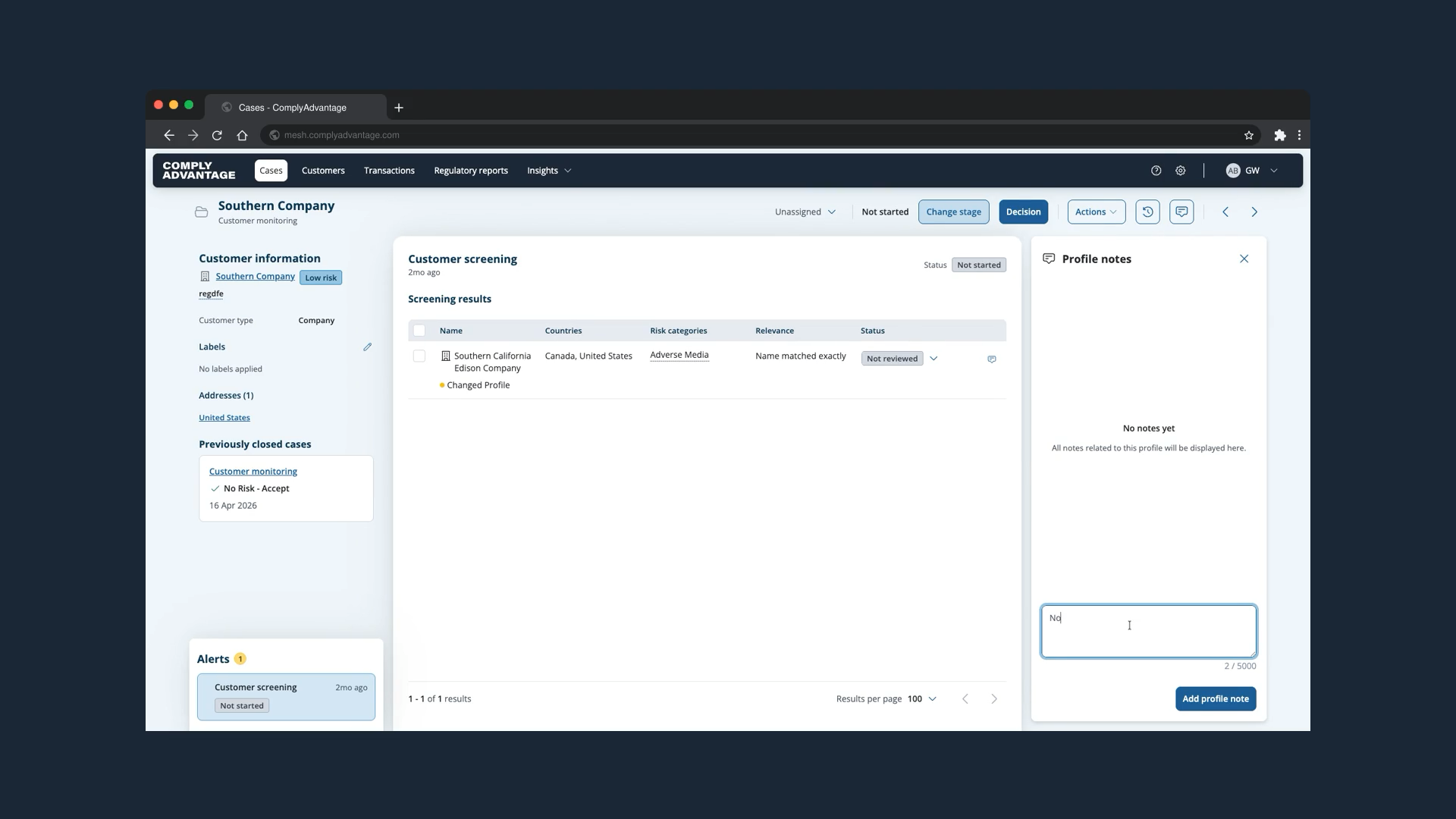
11. Enter a note
Enter a note, for example that the new data is not relevant to this case.
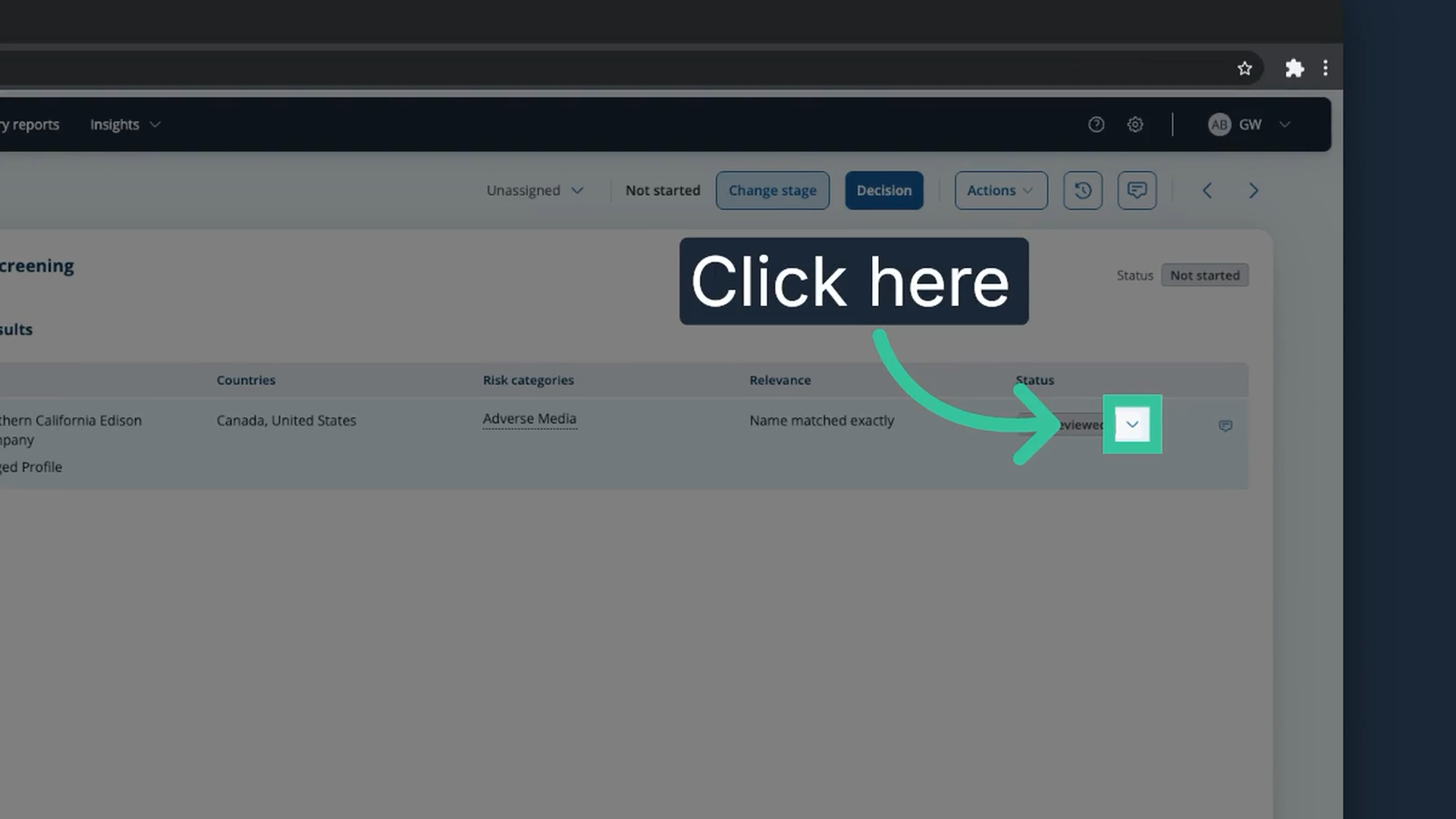
12. Open the status list
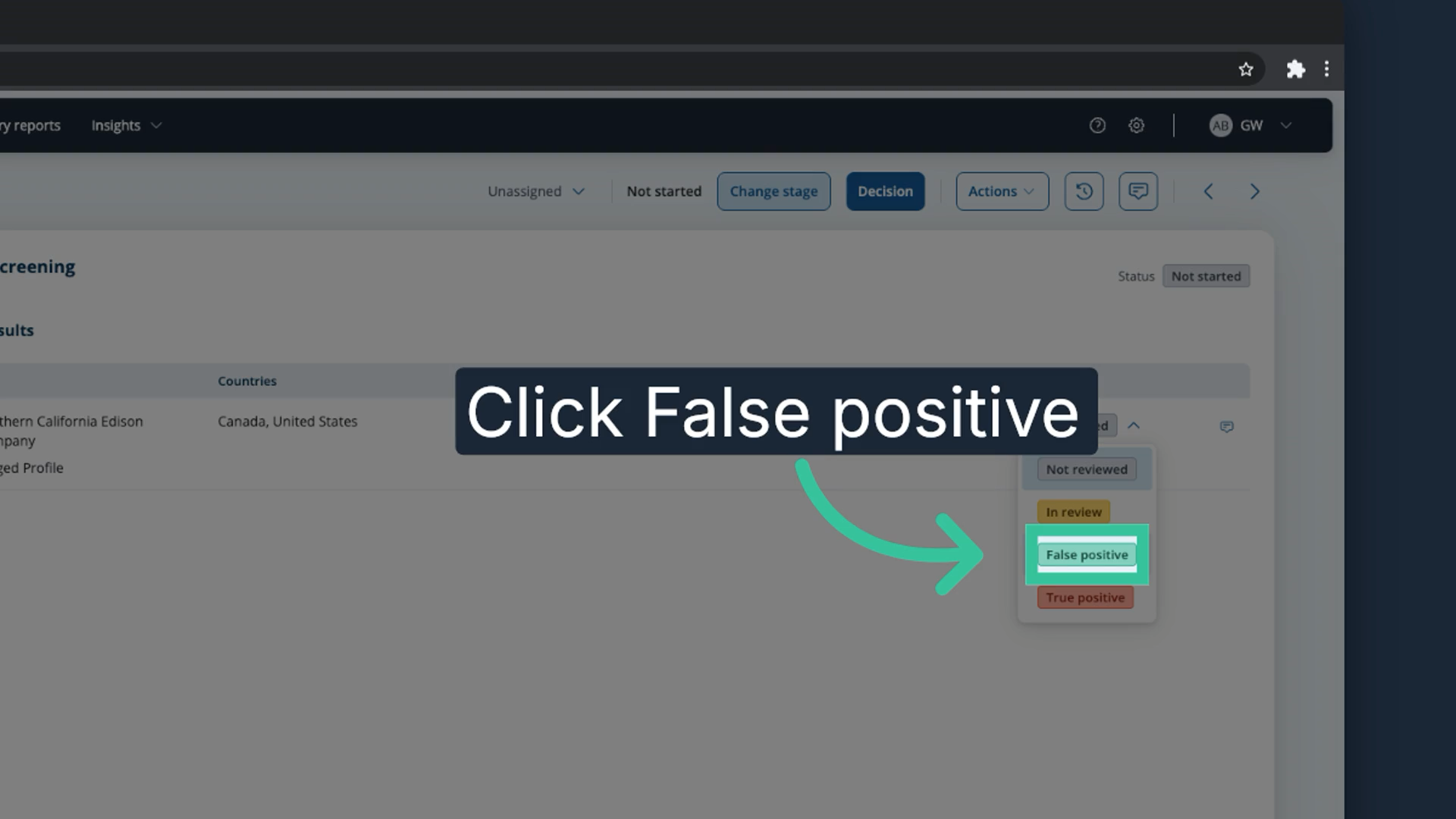
You can also review each risk profile individually. Click the status control on the row.
13. Select "False positive"
In this example, we mark the profile as "False positive".
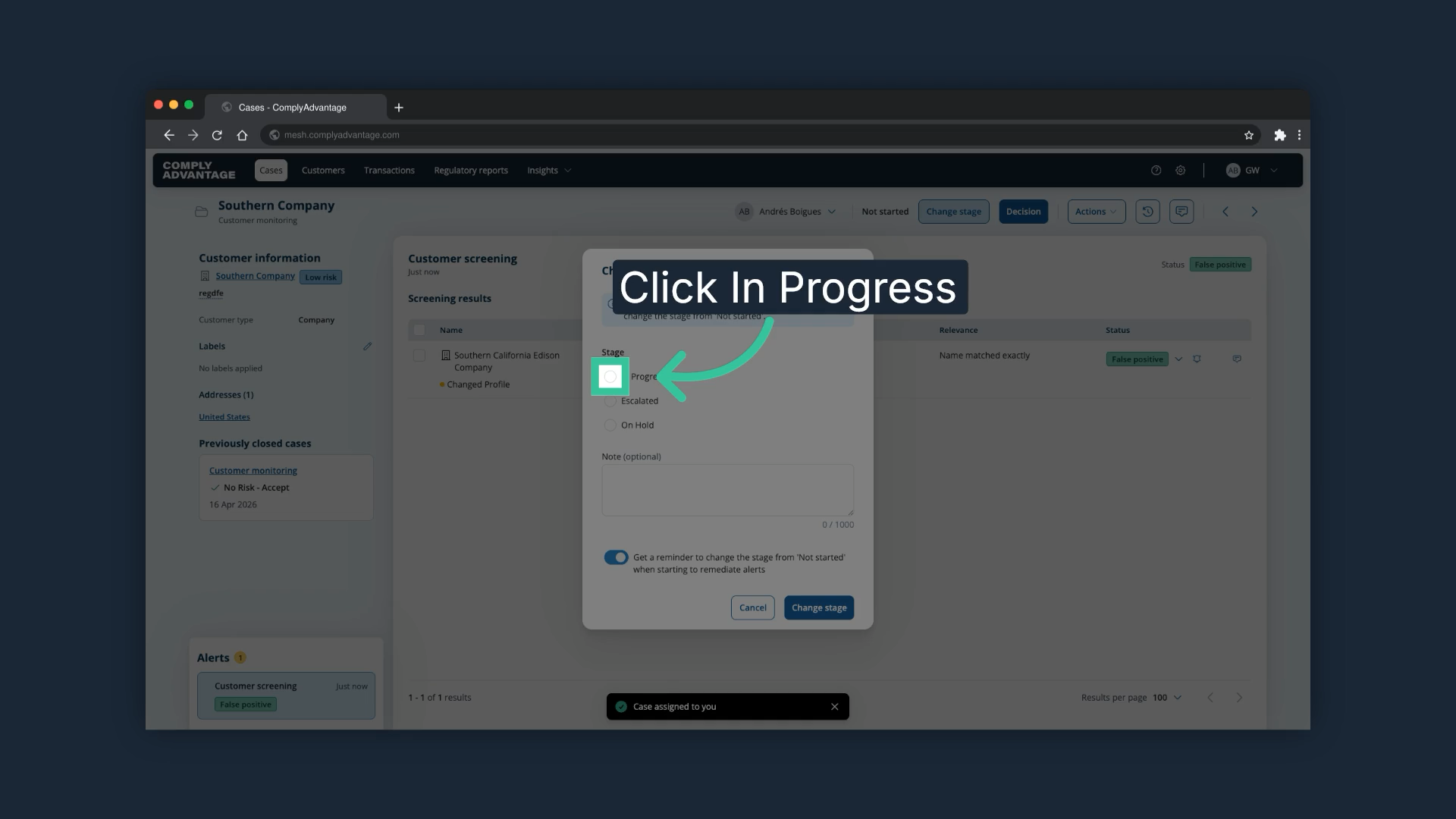
14. Select "In Progress" in the stage prompt
Mesh prompts you to change the case stage, because you are now actively working the case. If the prompt appears, select "In Progress", or the stage your account uses for work that has started.
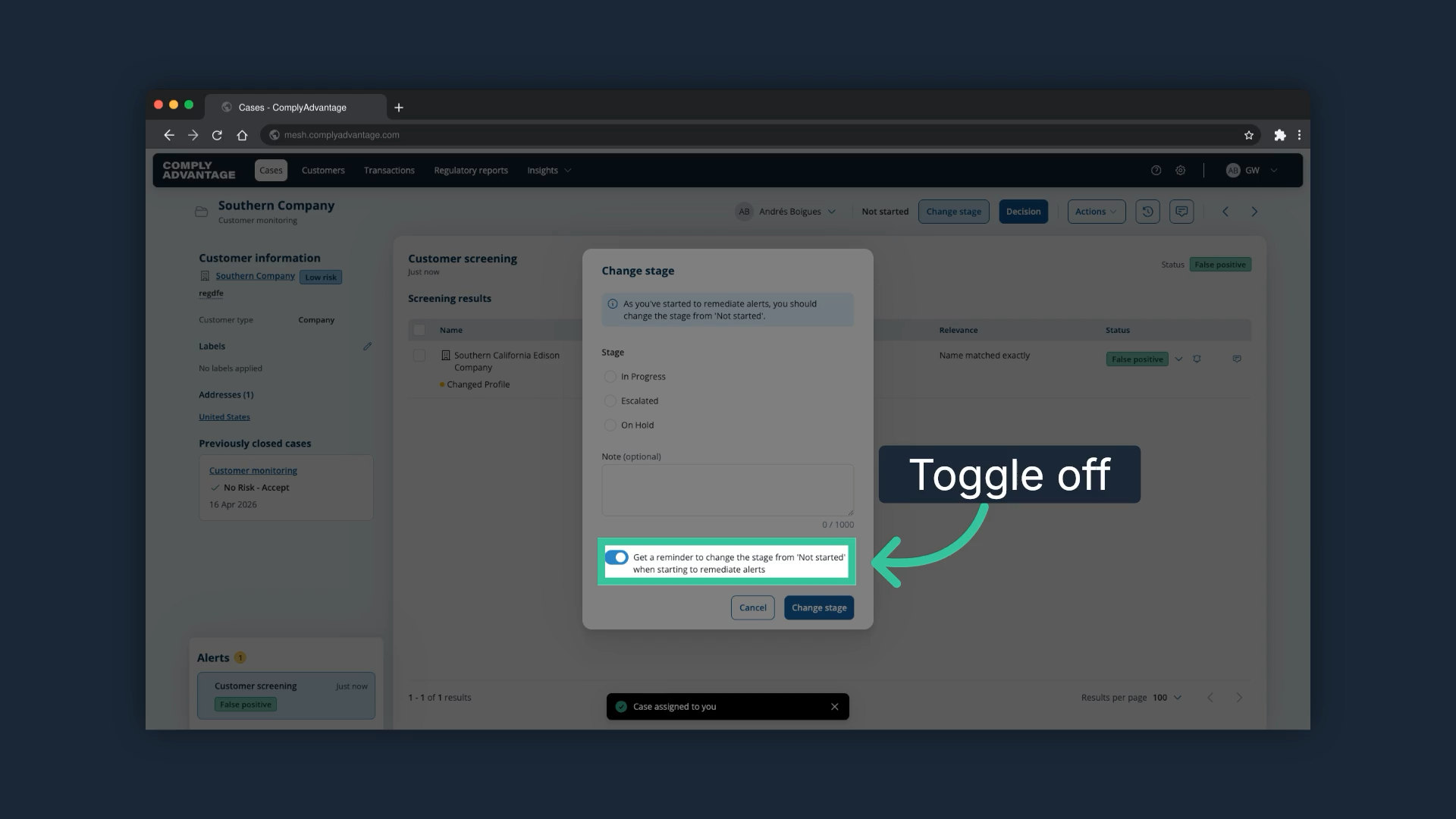
15. Confirm the stage change
Click "Change stage" to confirm. Before you do, you can disable this automatic prompt by toggling off the option below the note field.
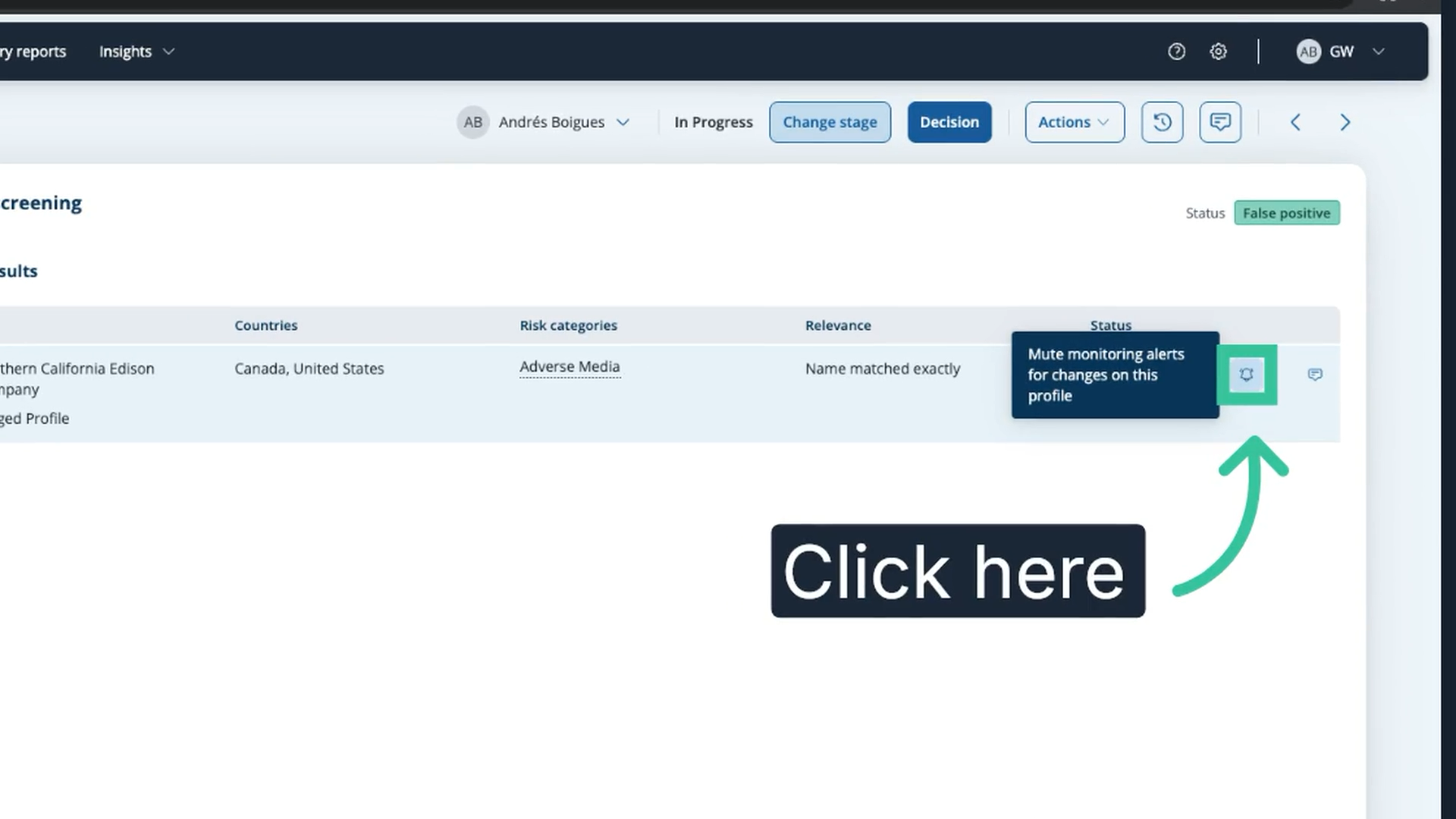
16. Mute the risk profile
You can also mute this risk profile, so new data related to it does not make it appear in future monitoring cases for this customer.
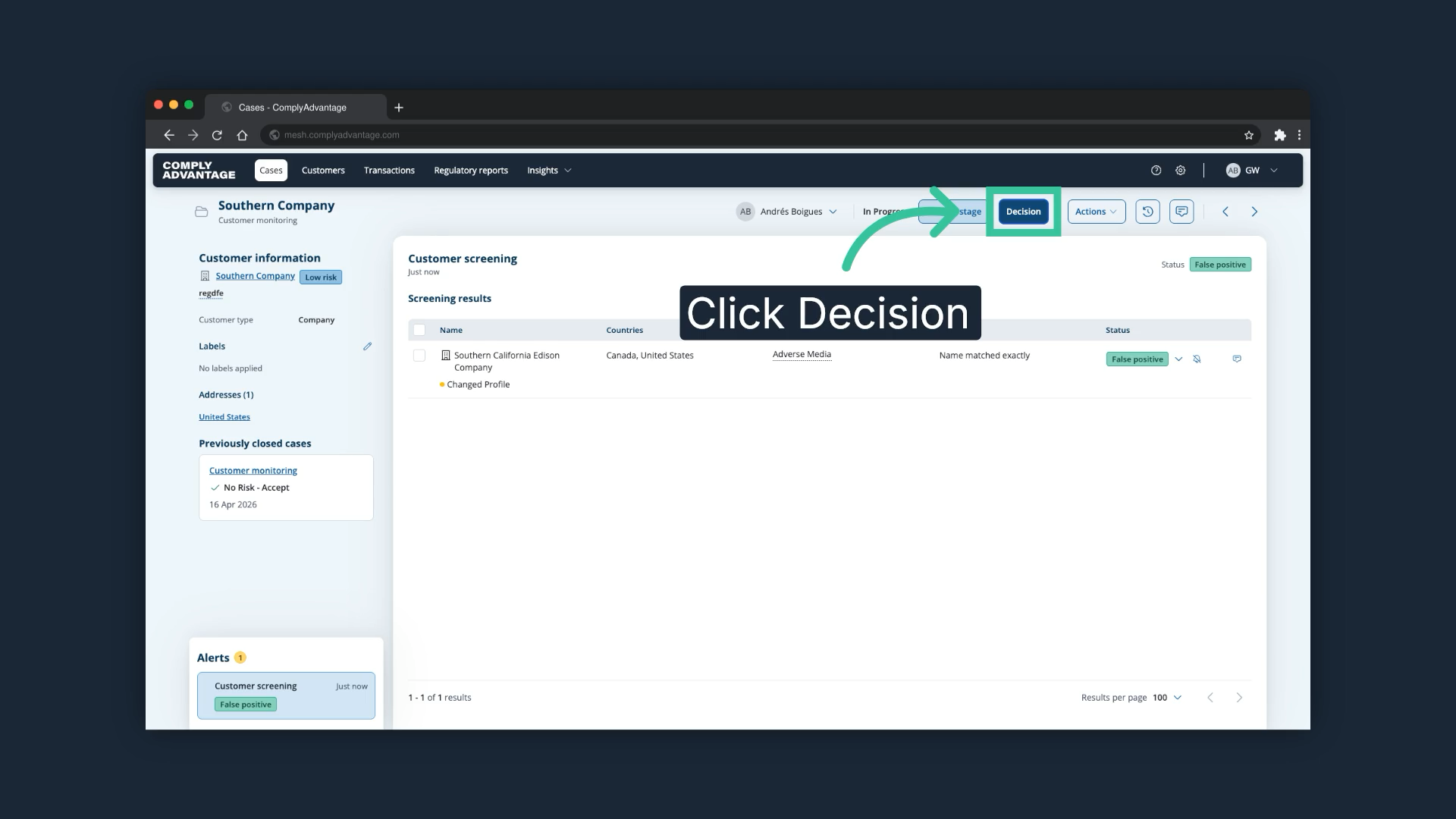
17. Click "Decision"
Once all risk profiles have been remediated, make a decision on the case, which closes it.
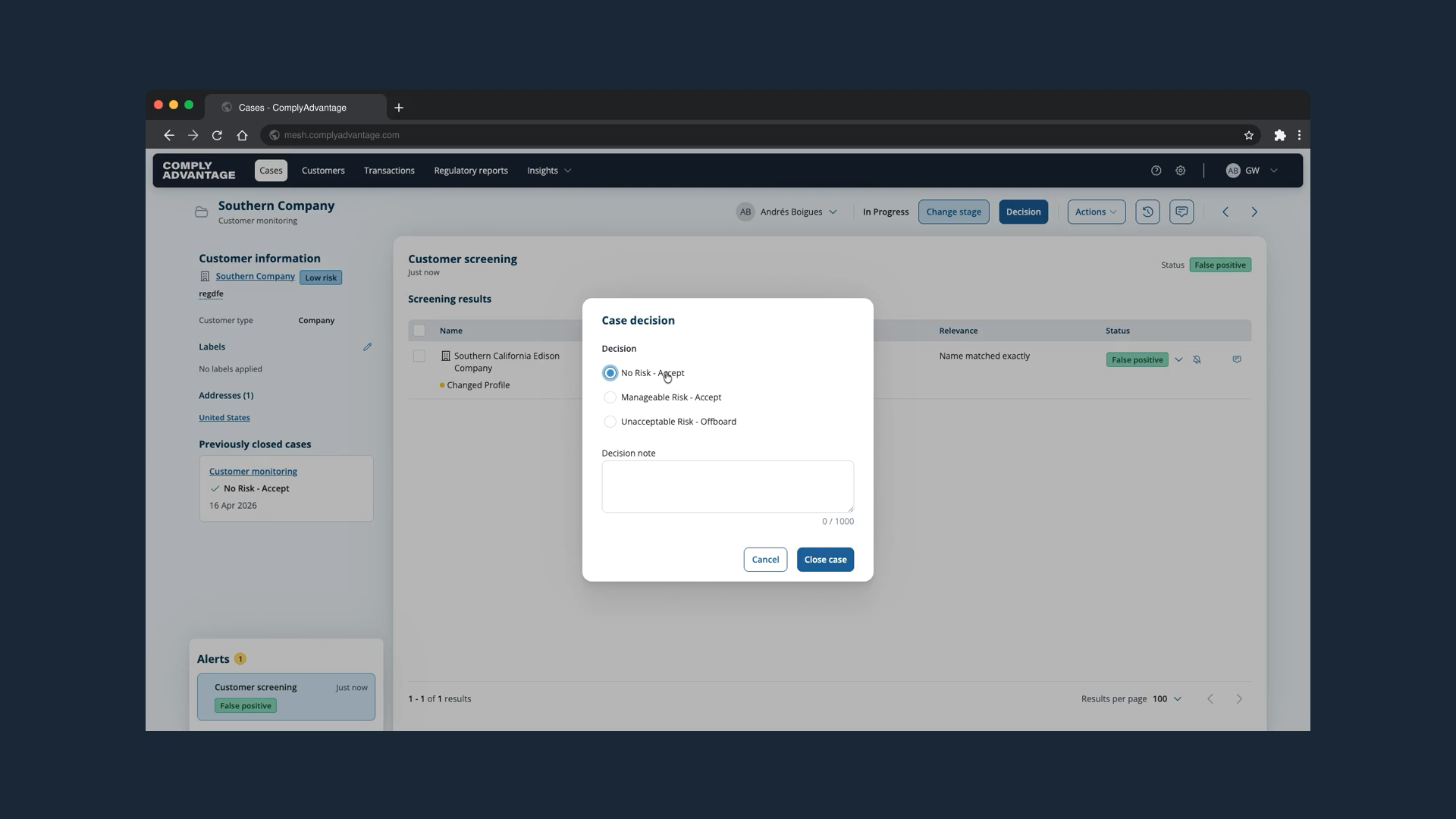
18. Select "No Risk - Accept"
In this example the only risk profile was a false positive, so we choose "No Risk - Accept" to close the case without further action.
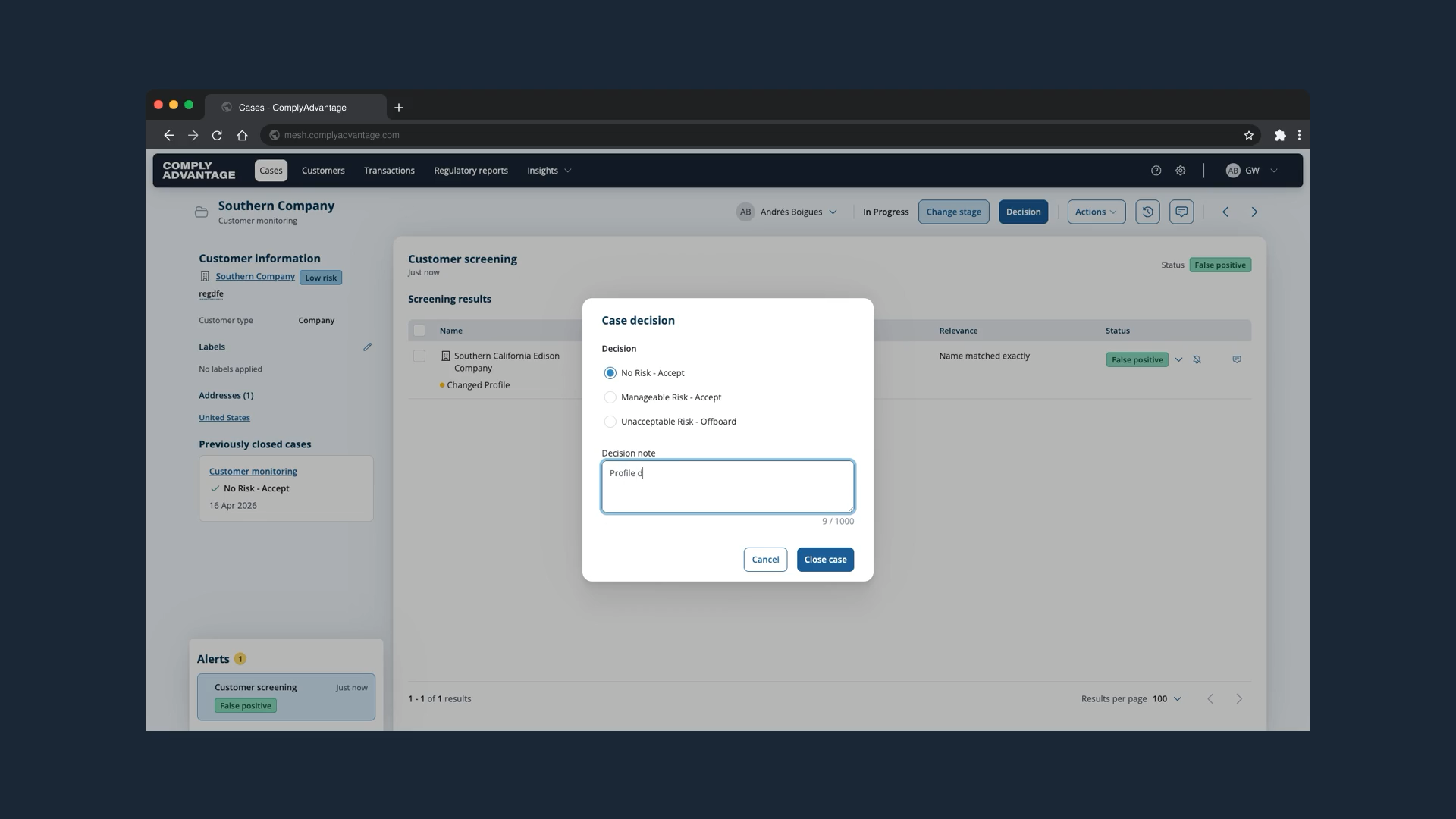
19. Enter a decision note
A note is mandatory to close the case.
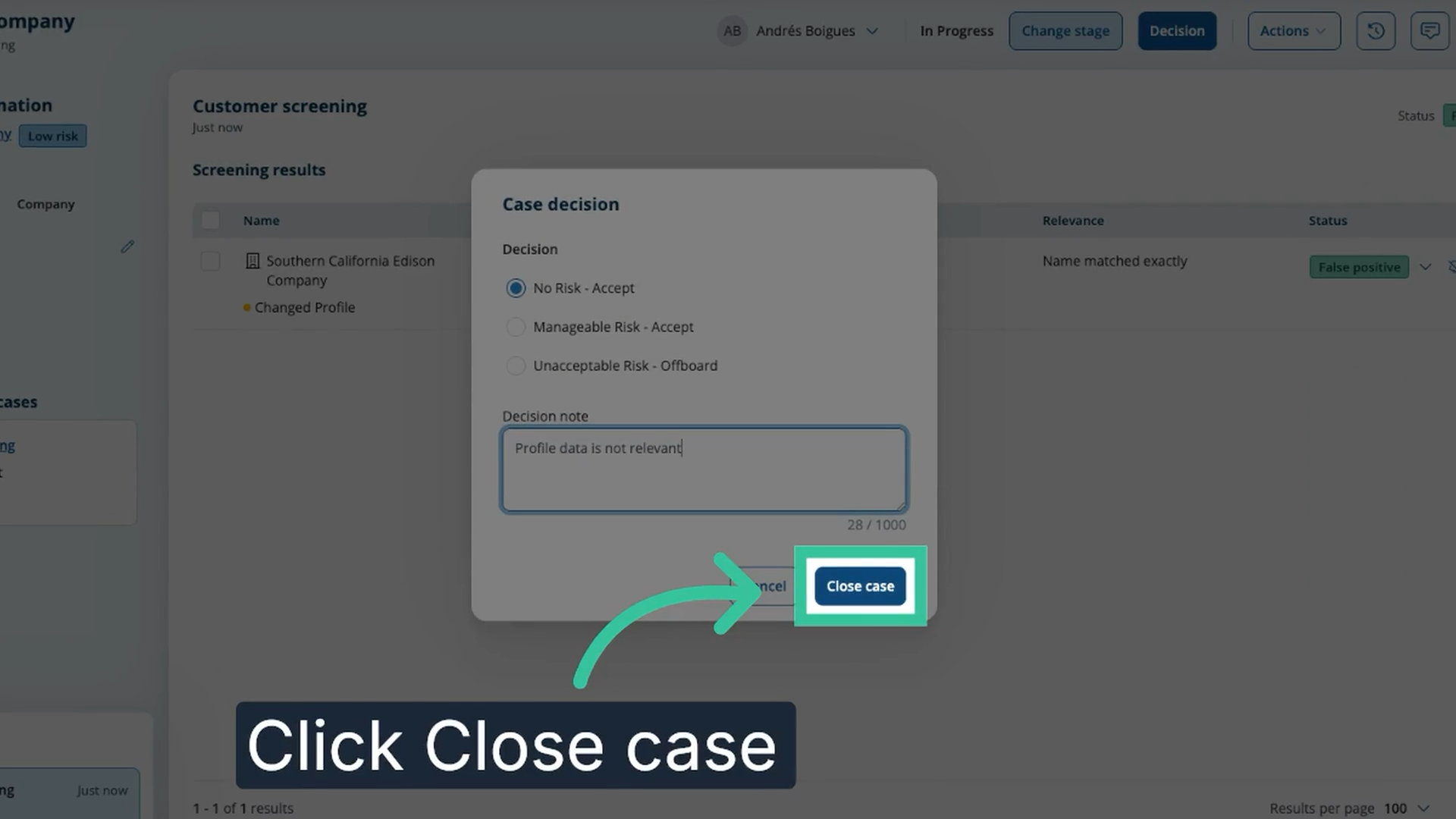
20. Click "Close case"
Click "Close case". The case closes and its header shows your decision.
We hope this guide helped you learn how to review and remediate a monitor case in Mesh.