Creating and screening a company
Last updated: November 27, 2026
We'll show you how to add a new company to Mesh.
Other articles show you how to:
Use the Mesh API to create and screen an individual person or company (synchronous)
Use the Mesh API to create and screen an individual person or company (asynchronous)
Use the Mesh API to create and screen multiple people or companies
As part of creating a customer, Mesh performs an initial screening on them: you can choose which screening configuration to use for this. If you have a risk model set up for your account, Mesh will also deliver a risk score assessment for the company.
Video walkthrough
This video shows how to create and screen a company, from completing the Customer details to reviewing its risk score and any cases.
Creating the company
We recommend completing as many of the customer information fields as possible to improve the accuracy of screening and risk assessment.
More information about screening configurations
More information about risk models and risk scoring
Select Customers from the main header, then select Create, then Create company.
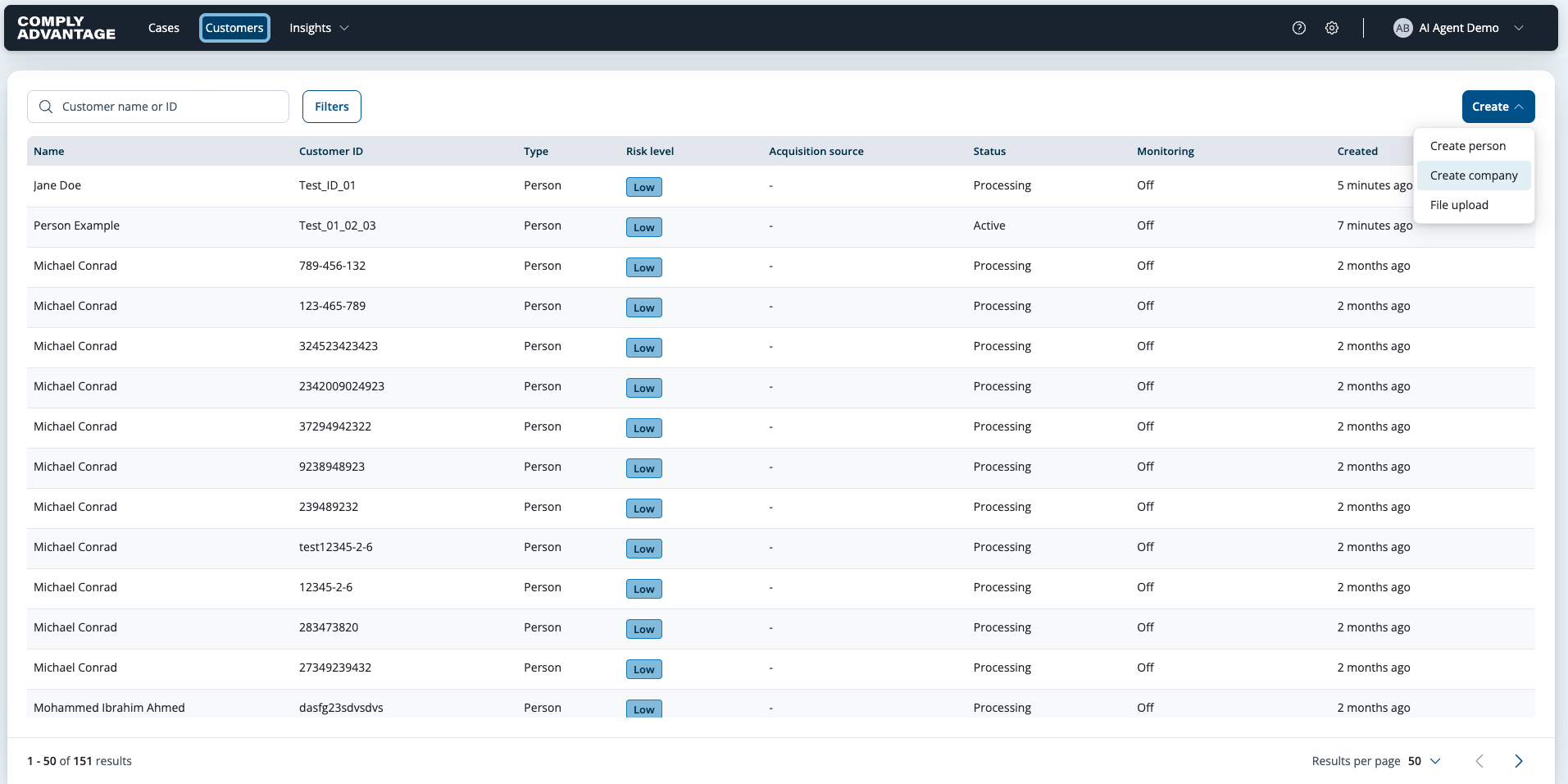
Create menu on the Customers page with Create company Complete as many of the customer information fields as possible and click Next. Customer identifier and legal name are required fields. If ComplyAdvantage has switched on automatic Customer identifiers for your account, Customer identifier is optional, and Mesh generates one when you leave it empty. We recommend you use the same customer identifier here as you do in your internal systems.
If you are using Company Risk Scoring, the other fields should be populated with the same attributes and values used in your Risk Score Model.
Customer information fields for a new company Select the screening configuration you want to use to screen this customer and click Create.
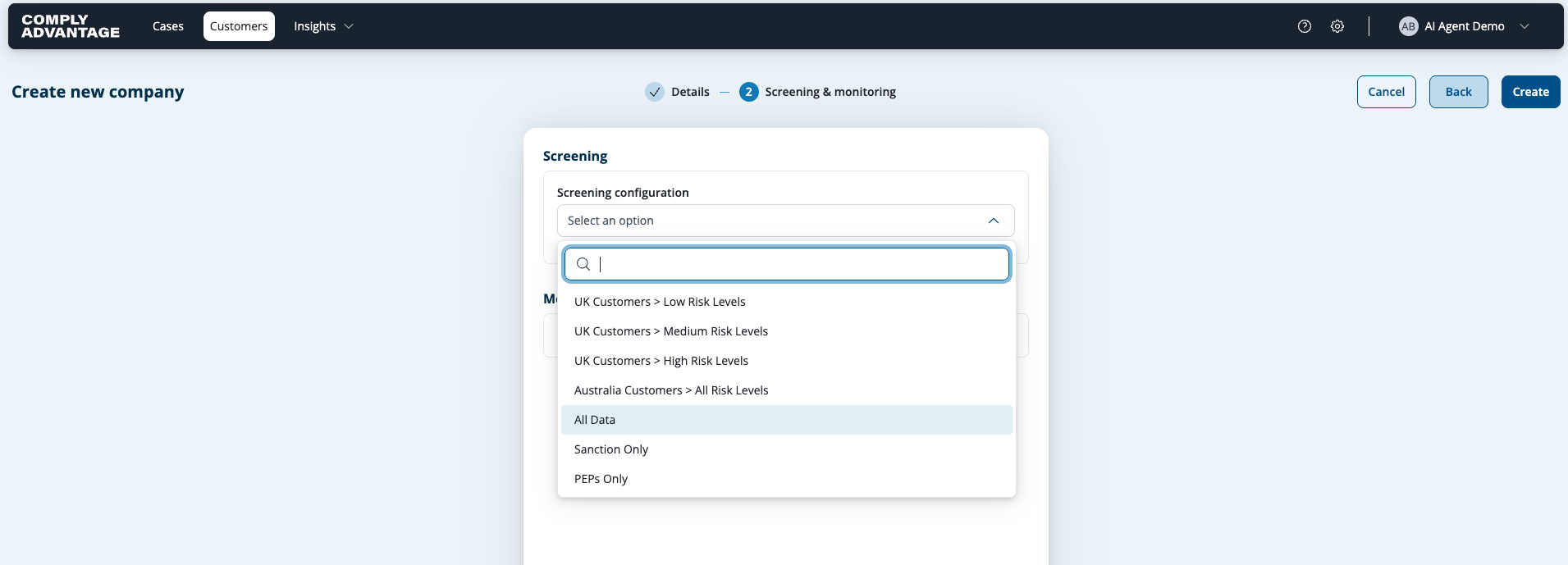
Screening configuration choice for the new company Your company will now be created, screened, risk scored (if appropriate) and displayed within the Customers page. Screening and risk scoring may not complete instantly: you can see progress in the blue Processing customer box.
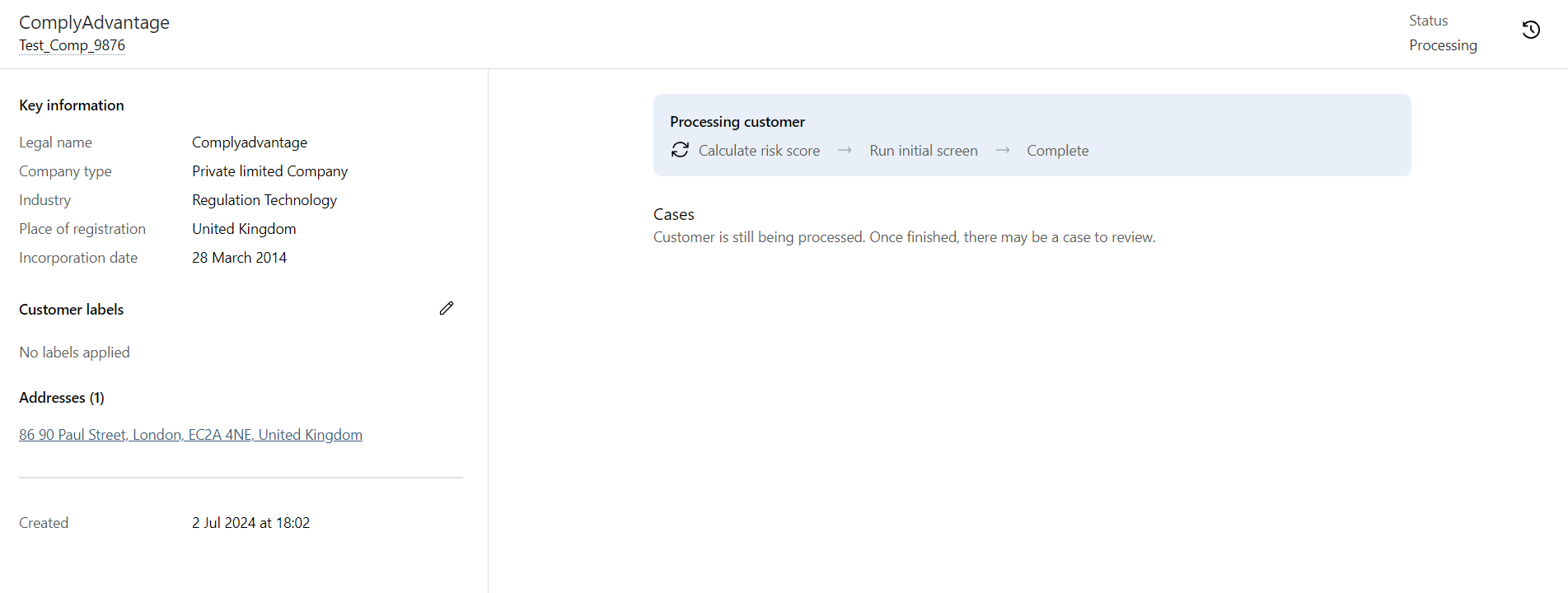
Processing customer box showing the screening progress Risk scoring can happen quite quickly. When it's complete, you'll see the overall risk score (in this case Low risk) displayed at the top left, next to the customer's name. If you were able to provide additional customer details above, you'll also see a breakdown of the risk.
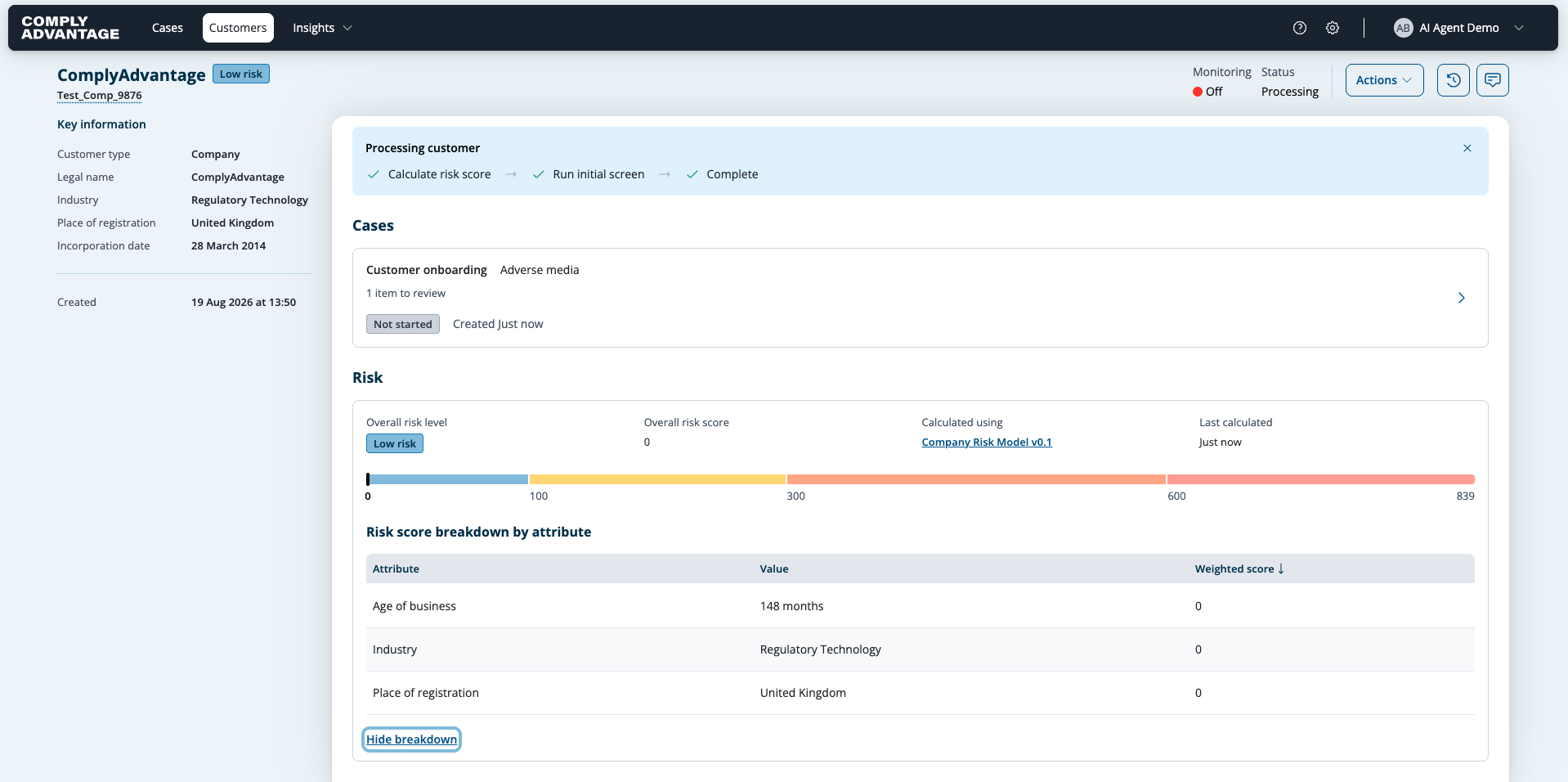
Low risk score and risk breakdown on the company record If no hits are found during screening then processing is complete. You'll see an Active customer status appear at the top right of the screen.
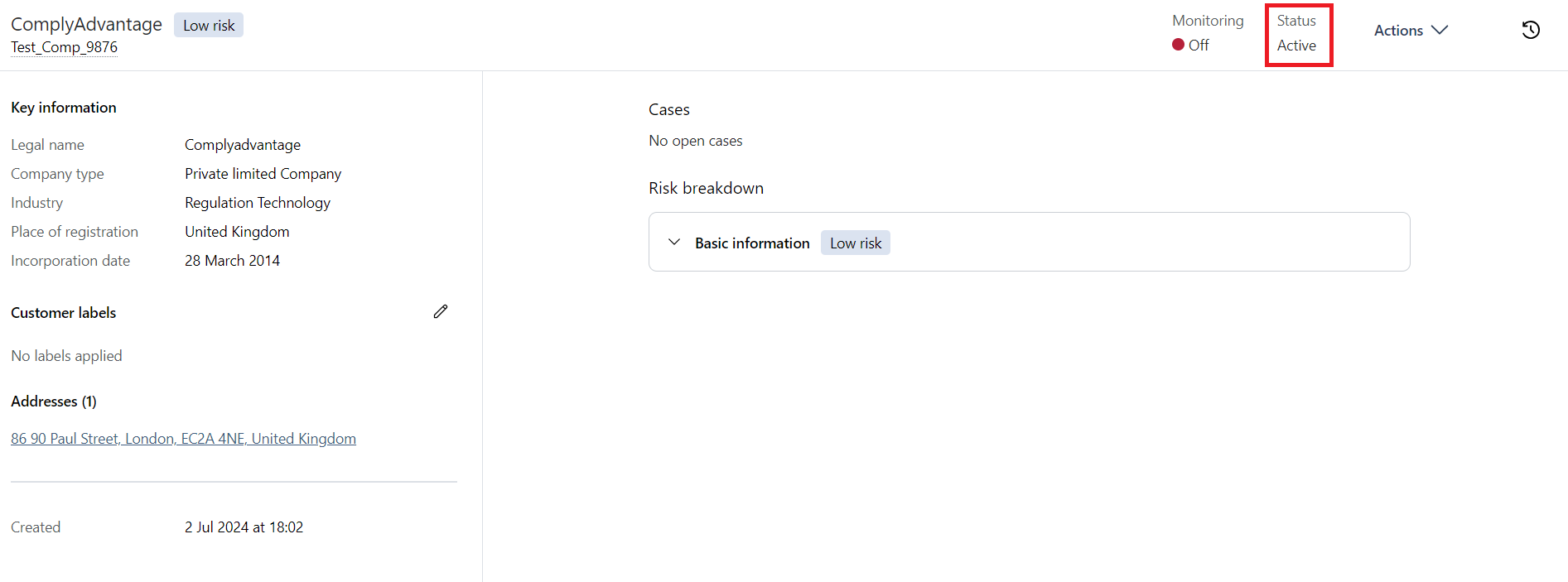
Active customer status at the top right If hits are found during screening, these will be summarized in a box under the Cases heading. Click on the box to be taken to the Cases page, where you can remediate and close the cases. After the cases have been resolved, the customer status on this page will change from Processing to Active.

Screening hits summarized under the Cases heading