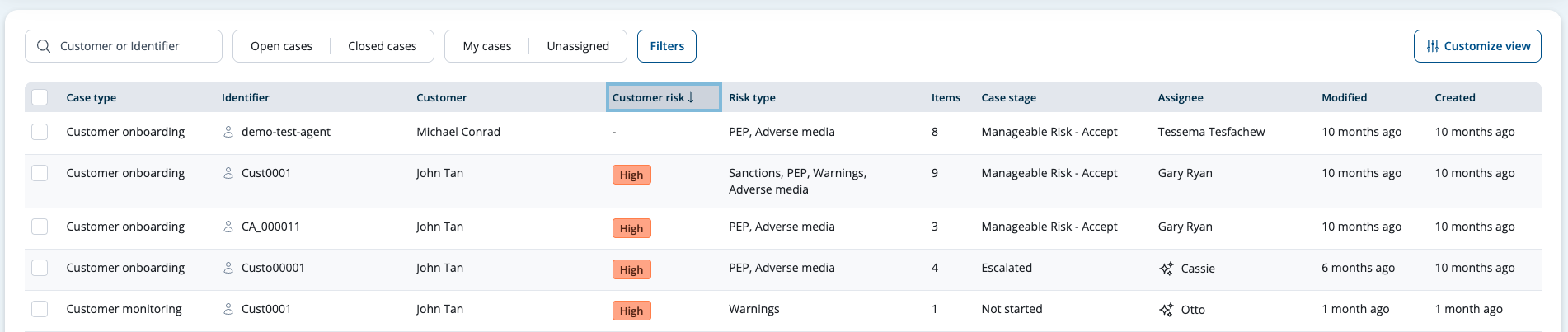
Searching for a customer
Last updated: November 18, 2026
From the Customers list, you can use a combination of search, filters and sorting to quickly find a customer within Mesh, whether it's a person or company you're looking for.
Using the search box
You can use the customer ID or any part of a customer name as search criteria. As you type the name it will start to return results.
Select Customers to display a list of the people and companies you have created in Mesh with this account.
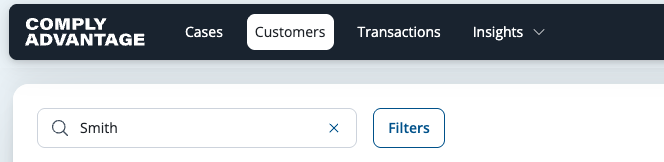
Enter your search term, from the customer name or customer ID, in the search box at the top of the page.
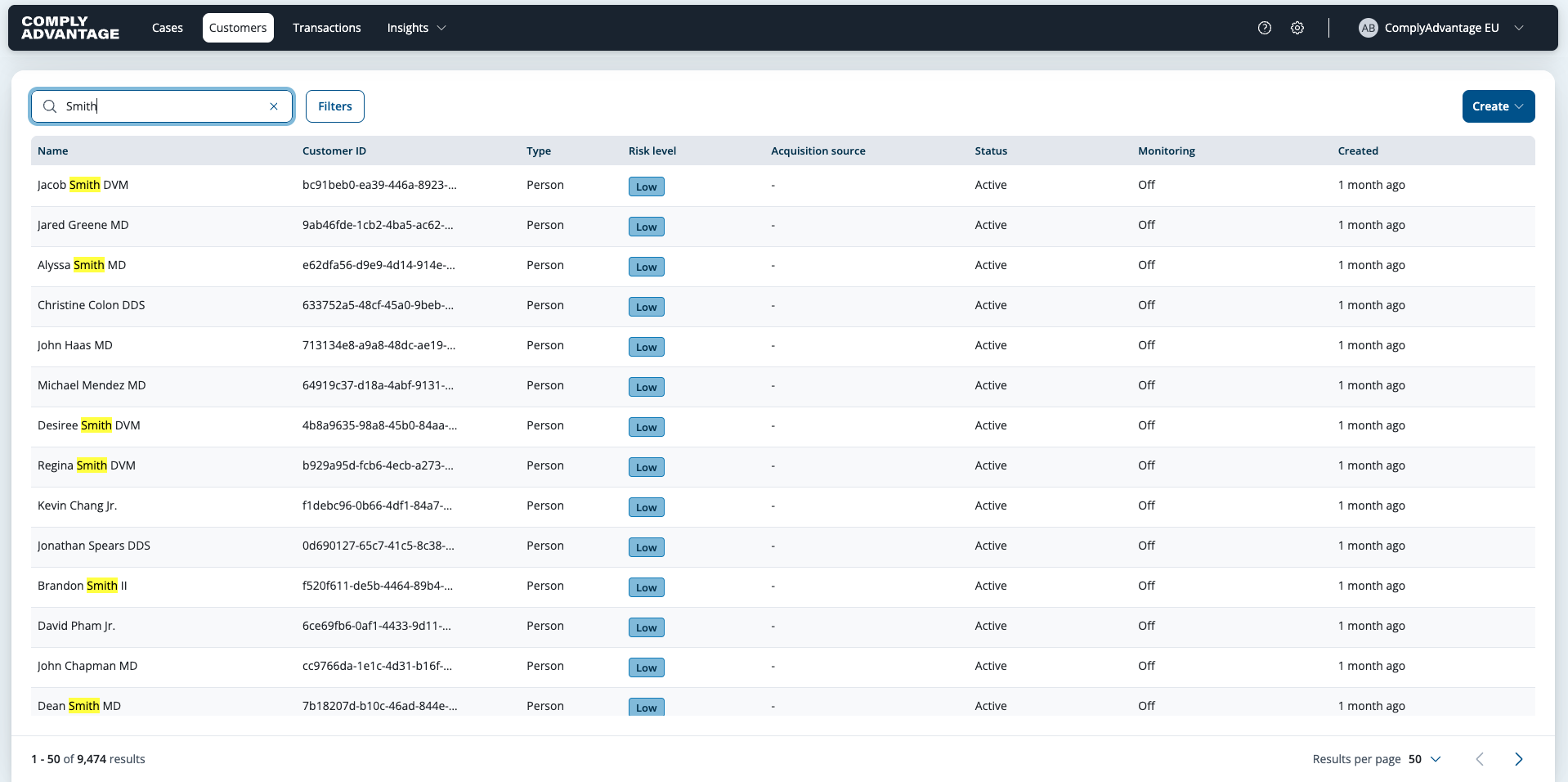
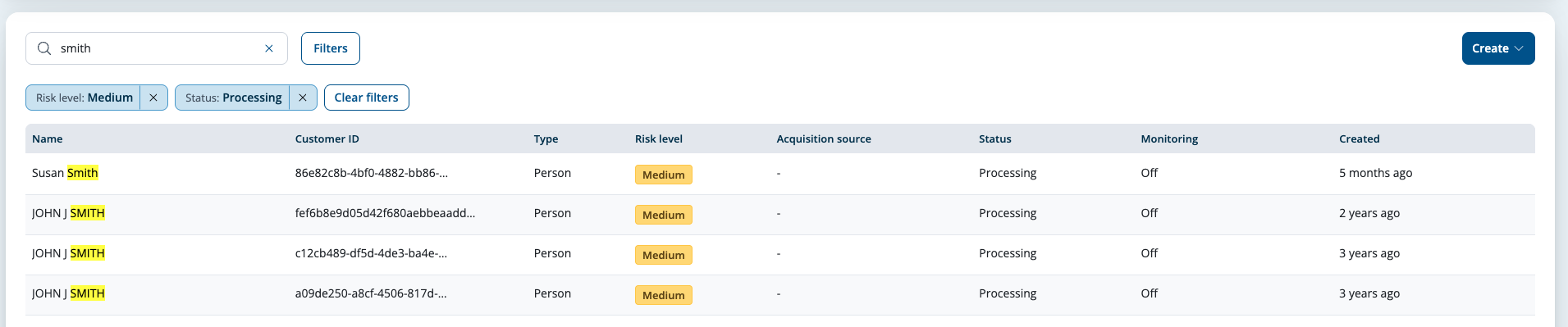
The Customers list will display the search results, with matching terms highlighted in yellow.
Filtering customers
You can filter the Customers list to show only the customers who meet a certain criteria. You can also apply these filters to a list of search results.
You can filter customers by:
Risk Level: Low, Medium, High, Prohibited, Unknown
Customer Status: Action required, Active, Closed, Processing
Created: A custom time range you specify
Monitoring: On, Off
You can apply as many filters as you need. This includes multiple options for the same filter, for example you can choose to display customers with a risk level of either Low and Medium.
To filter your list, click on Add filter at the top of the page, then choose the appropriate filter and option, eg Risk level and Medium.
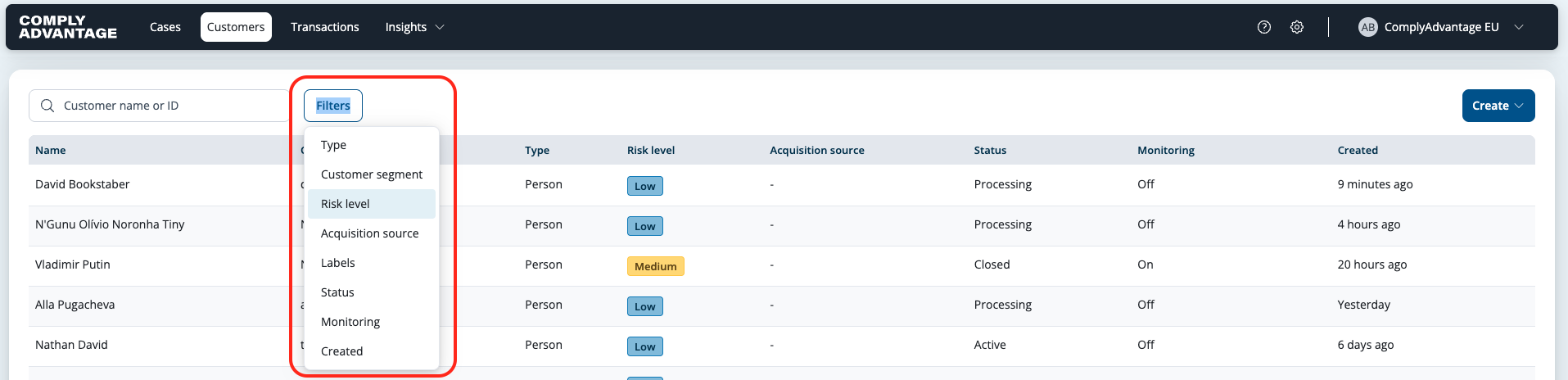
Risk level in the Filters menu on the Customers list The filters you've chosen will be displayed below the search box, and your Customers list will display the relevant results.
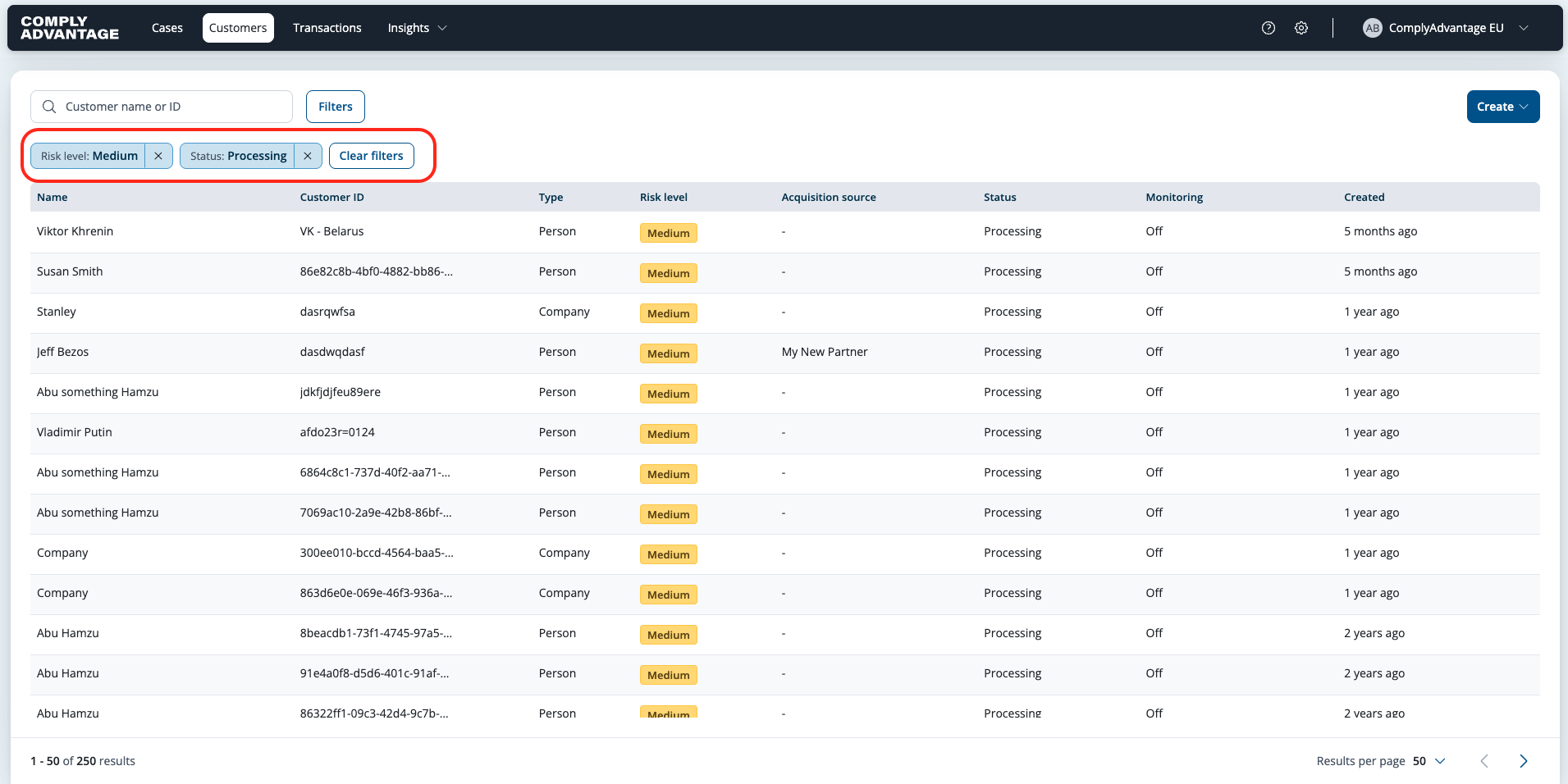
Clearing searches and filters
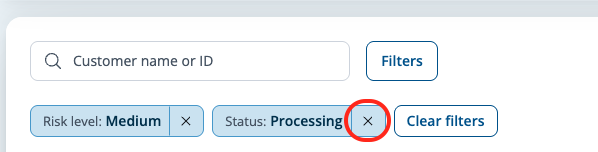
To remove a single filter, click the cross next to the filter.
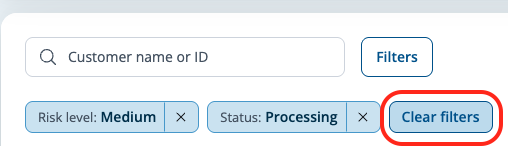
To remove all the filters, click the Clear filters button.
Search terms can be combined with filters to help you filter results even further.
To clear the search parameters and display the entire customer list, delete the search term from the search box. Any filters will remain active, but across your full customer list.
Sorting customers
You can sort the Customers list by any column, ascending or descending. Ascending means from smallest to largest, i.e. 0-9, A-Z, oldest to newest or, for Risk level and Status, from lowest to highest importance. Descending means from largest to smallest, i.e. 9-0, Z-A, newest to oldest or, for Risk level and Status, highest to lowest importance.
By default, the Customer list is sorted by the date the customer was created, with the most recent displayed at the top of the list (The data is sorted on the Created column in descending order).
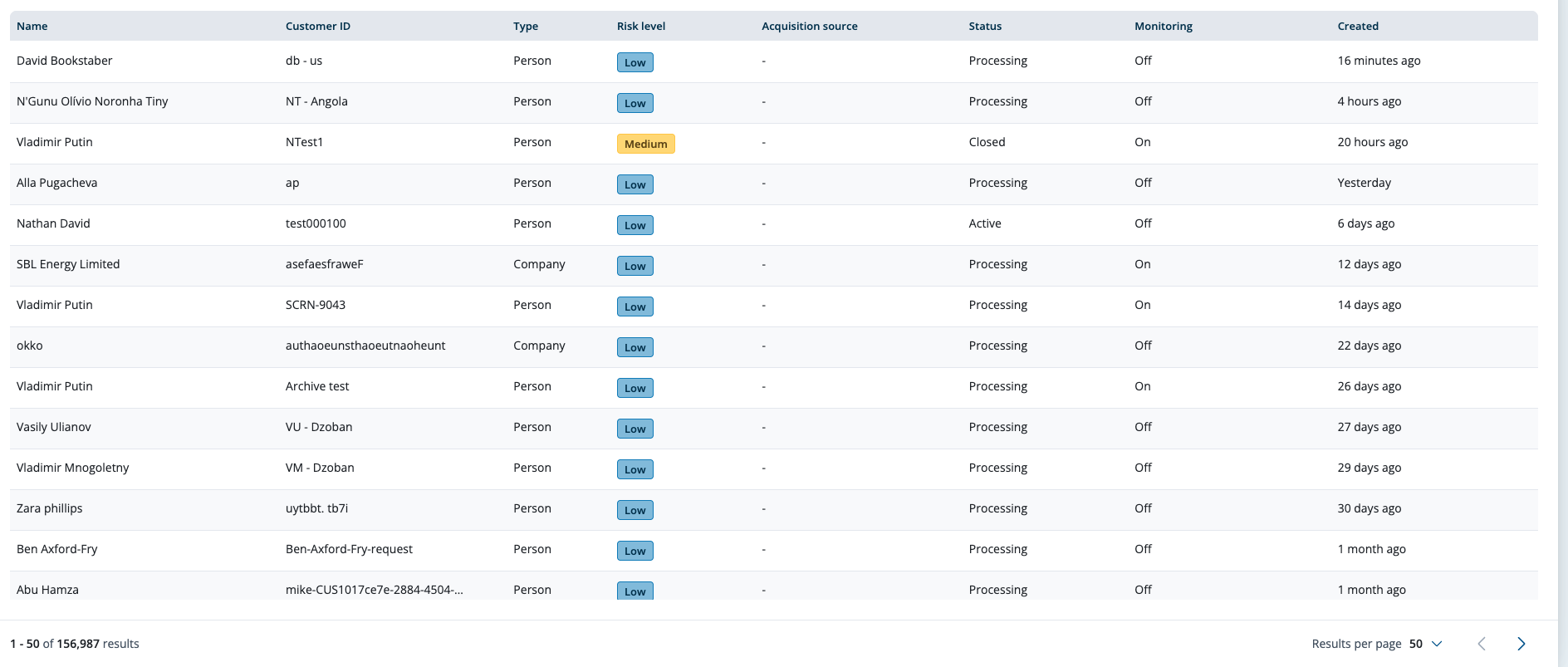
Customers list with the most recently created at the top To reverse the list and display the oldest customers at the top of the list (to sort the Created column in ascending order), click the Created column header. Keep clicking the column header to toggle between descending and ascending order.

To sort by any other column, click the column name. Keep clicking on the column name to toggle between ascending and descending order.