Reordering stages in a case workflow
Last updated: November 18, 2026
You can reorder the stages in a workflow to align with your business needs.
Once reordered, the new order for stages will be reflected across the platform.
How to reorder stages in a case workflow:
Select Settings from the main header.
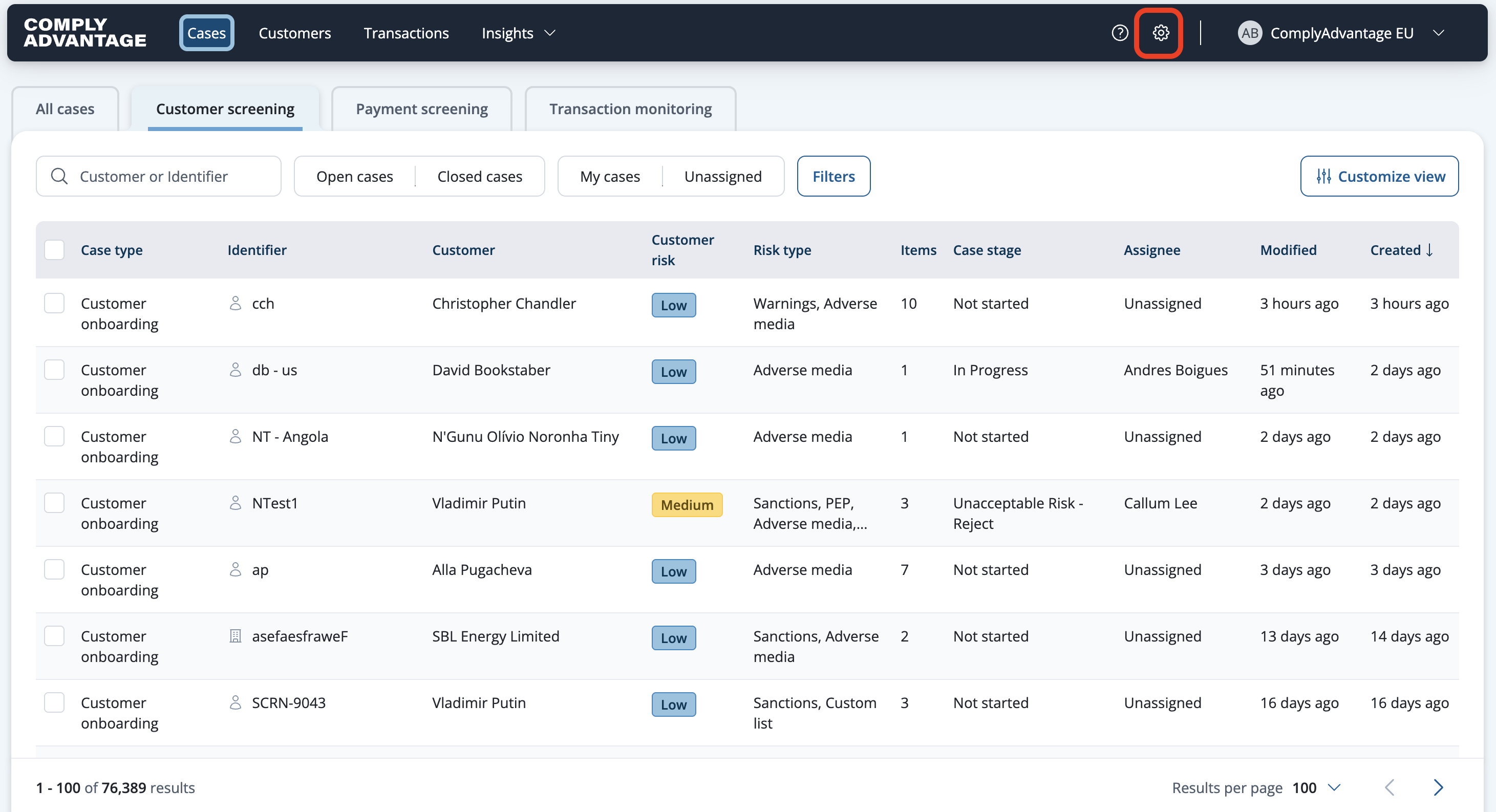
Settings gear icon in the main header Select a case type under Case Workflows in the navigation menu.

Case types listed under Case Workflows Click the Edit button to enter workflow edit mode.

Edit button that opens workflow edit mode Click the reorder icon next to the stage you wish to move.
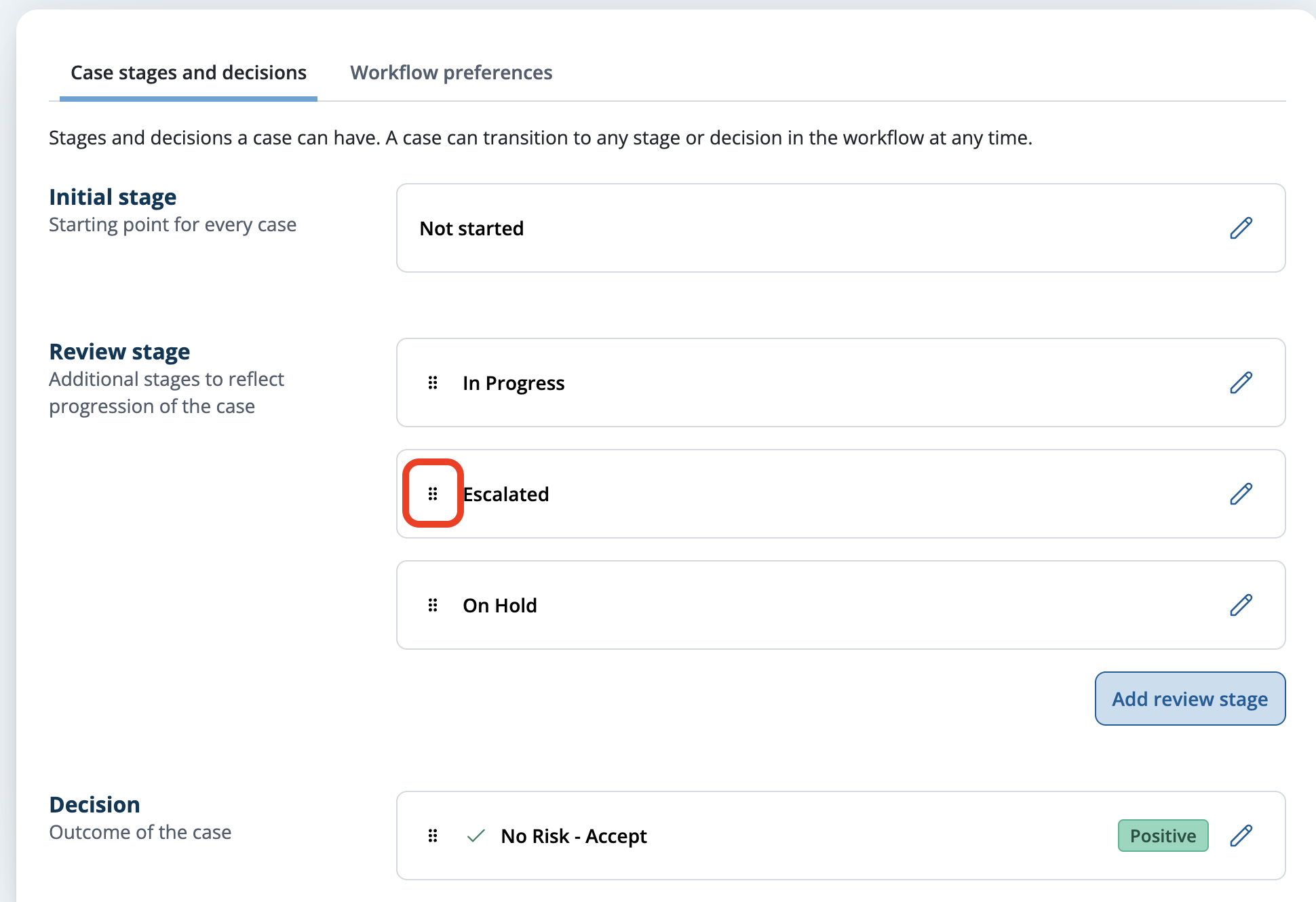
Reorder icon beside a stage in edit mode Drag the tile to the desired position (within the same stage type).

Stage tile dragged to a new position Save the changes.
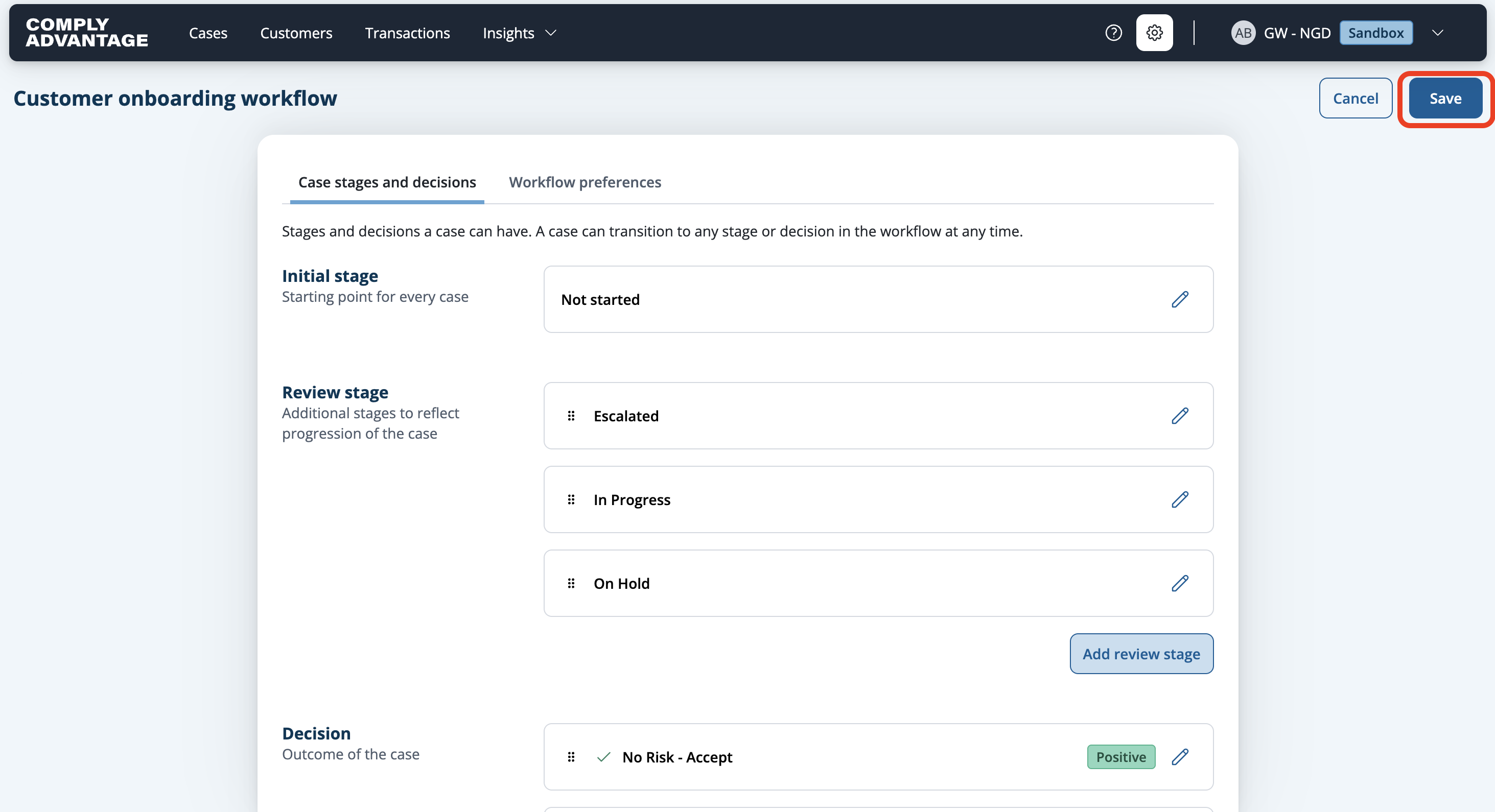
Reordered review stages and the Save button See the changes reflected across the platform.