Closing a case

Last updated: November 18, 2026

When you've finished reviewing a case, you close it by making a decision on it. You do this from the case view page or the case list.

Closing a case from the case view page

  1. Click the Decision button in the top right of the case view page. This example shows a customer monitoringnboarding case.
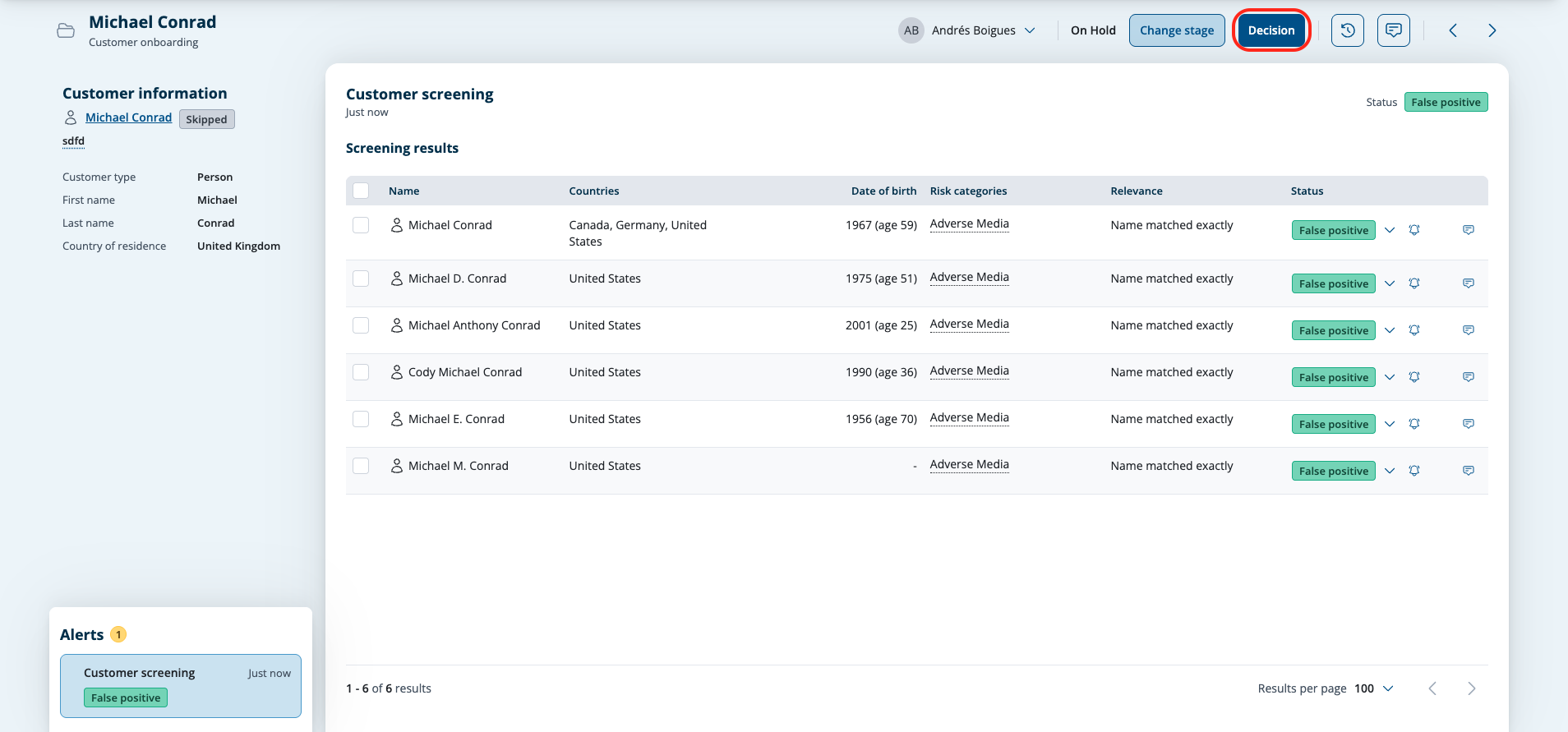
Customer onboarding case view page with screening results marked False positive and the Decision button highlighted
The Decision button on a customer onboarding case view
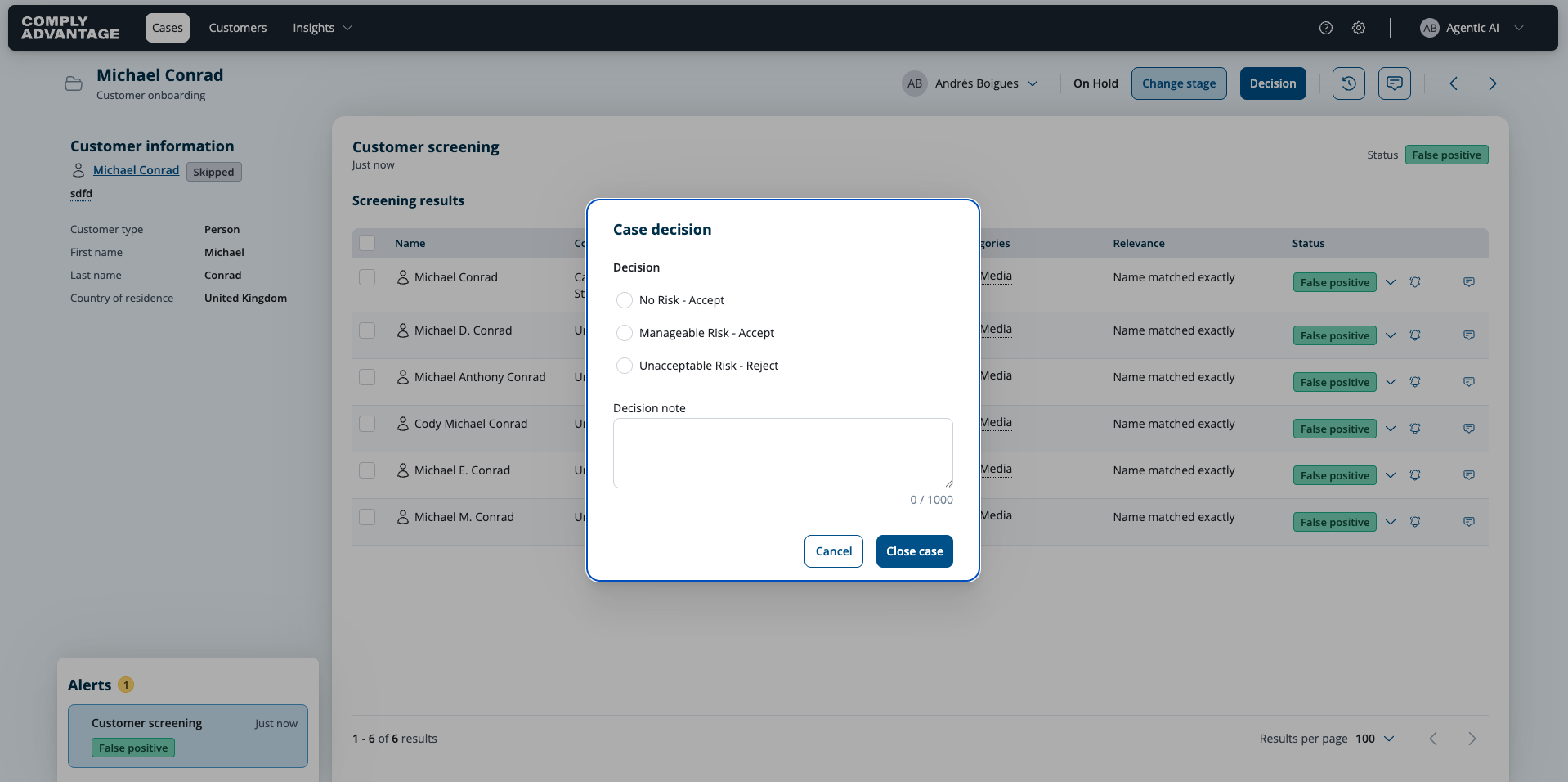
  1. In the pop-up window select the case decision. The default options are:

  • No risk - Accept

  • Manageable risk - Accept

  • Unacceptable risk - Reject

Case decision pop-up with three decision options, an empty Decision note field and the Cancel and Close case buttons
Case decision pop-up with three decision options
  1. Enter a decision note and select Close case.
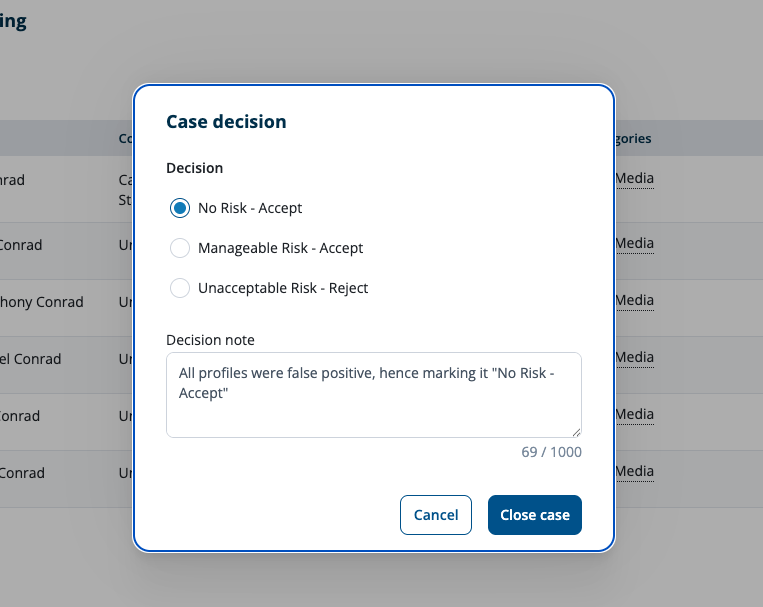
Case decision pop-up with No Risk - Accept selected, a decision note entered and the Close case button
Case decision pop-up with a decision note entered

  1. You'll see a success notification.

Case closed success notification with a green check mark
Case closed success notification
  1. The case header is updated to show the case decision.
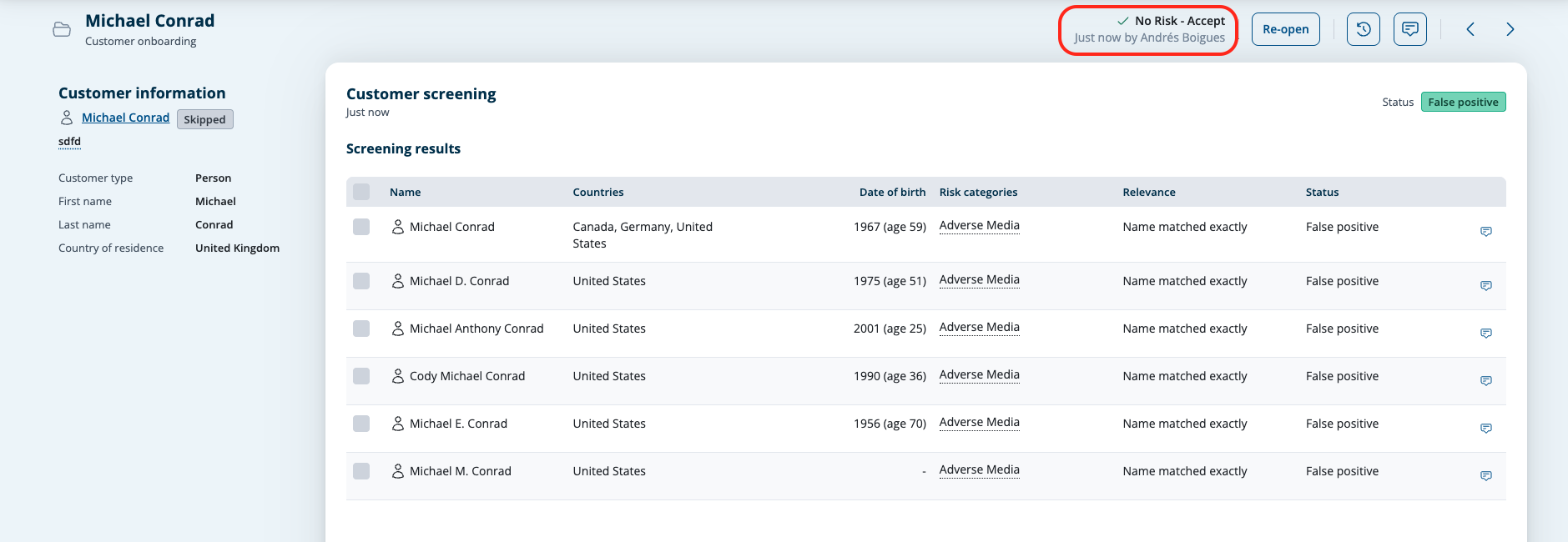
    Case view page with the header showing the No Risk - Accept decision and a Re-open button after closing
    Case header showing the decision and the Re-open button

Closing a case from the case list

  1. Go to the case list page by clicking Cases in the top left.

  1. Find the case to be closed using the search or filters.

  1. Select the checkbox beside the case you want to close.

  1. When one or more cases are selected the Actions button appears in the top left.
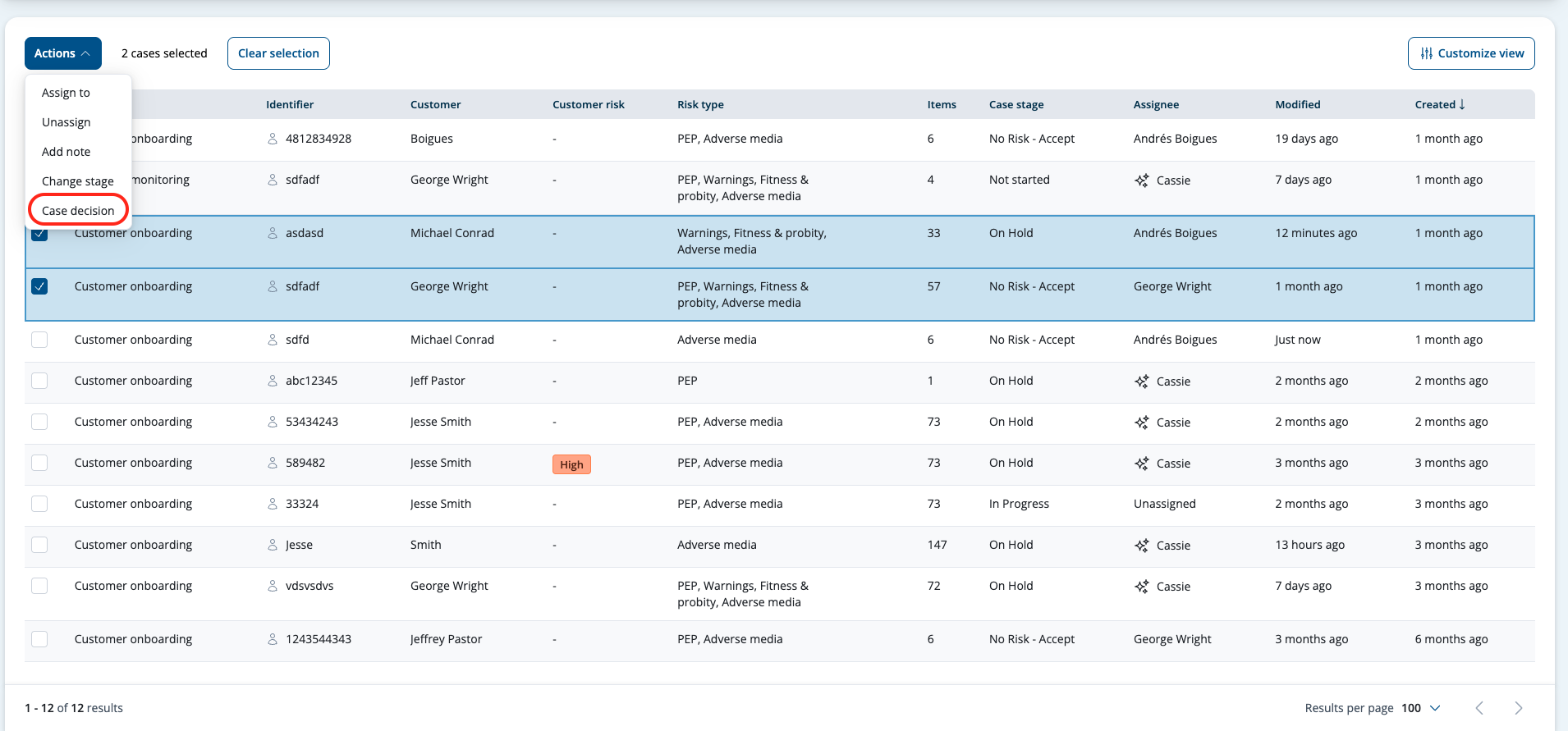
Case list with two cases selected and the Actions menu open, with Case decision highlighted
Case decision in the Actions menu on the case list
  1. Open the Actions menu and select Case decision.

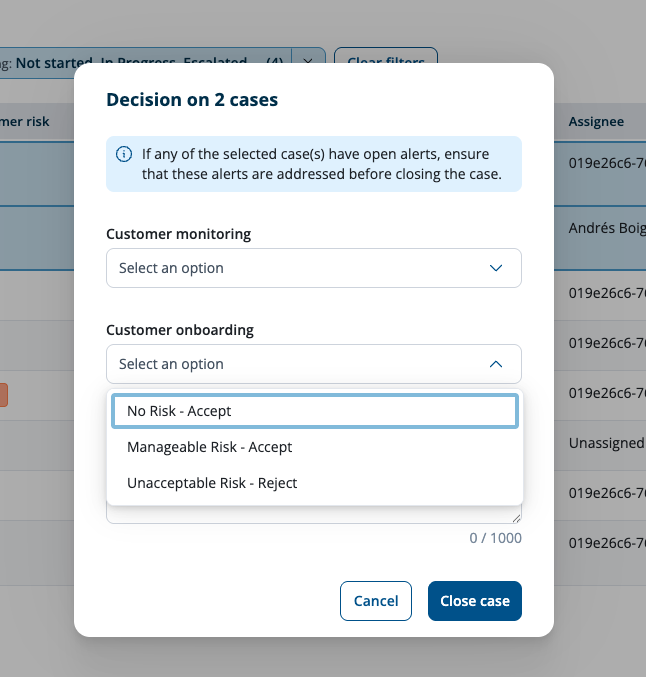
  1. In the pop-up window select the case decision. The default options for a Customer monitoring case are:

  • No risk - Accept

  • Manageable risk - Accept

  • Unacceptable risk - reject

    Decision on 2 cases pop-up with Customer monitoring and Customer onboarding menus, the onboarding menu open
    Decision pop-up with the Customer onboarding menu open

  1. Type in a decision note and select Close case.
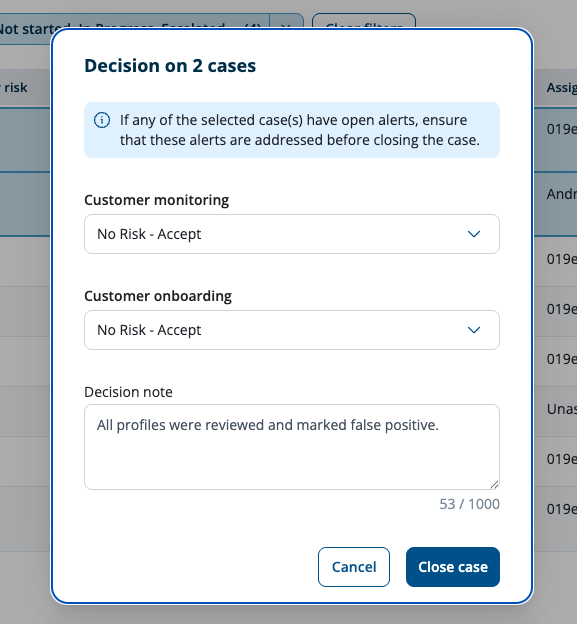
Decision on 2 cases pop-up with No Risk - Accept set for both case types and a decision note entered
Case decisions and a decision note in the decision pop-up


  1. You'll see a success notification.

Case closed success notification with a green check mark
Case closed success notification
  1. The case stage column in the case list is updated to show the case decision.

Case list with the Case stage column highlighted, showing No Risk - Accept for the two closed cases
Case stage column showing the case decision