Reopening a closed case
Last updated: November 18, 2026
If a case needs further review or the case decision needs to be changed, it can be reopened from the case details page.
Reopening a case:
Go to the case list page by clicking Cases in the top left.
Find the case you want to view using the search box or filters.
Click the case to view its case details page.
Select the Re-open button in the top right.
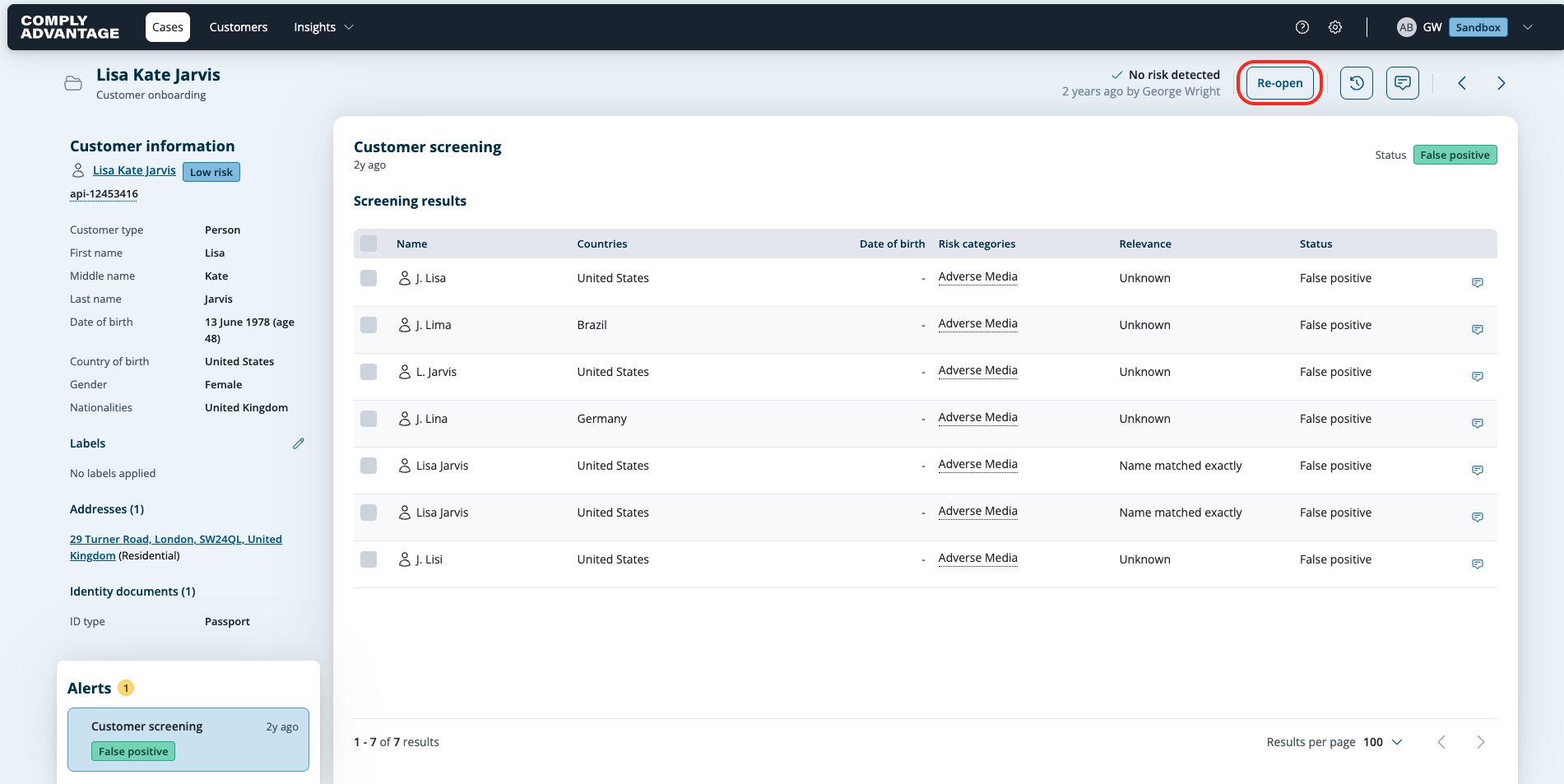
The Re-open button on a closed case This opens up a modal showing options of initial or review stages that the case can be reopened in, and an option to add a note.

Re-open case modal with the stage options and a note On selection, when Re-open is clicked, the assignee will remain unchanged, and the case will open in the selected stage.
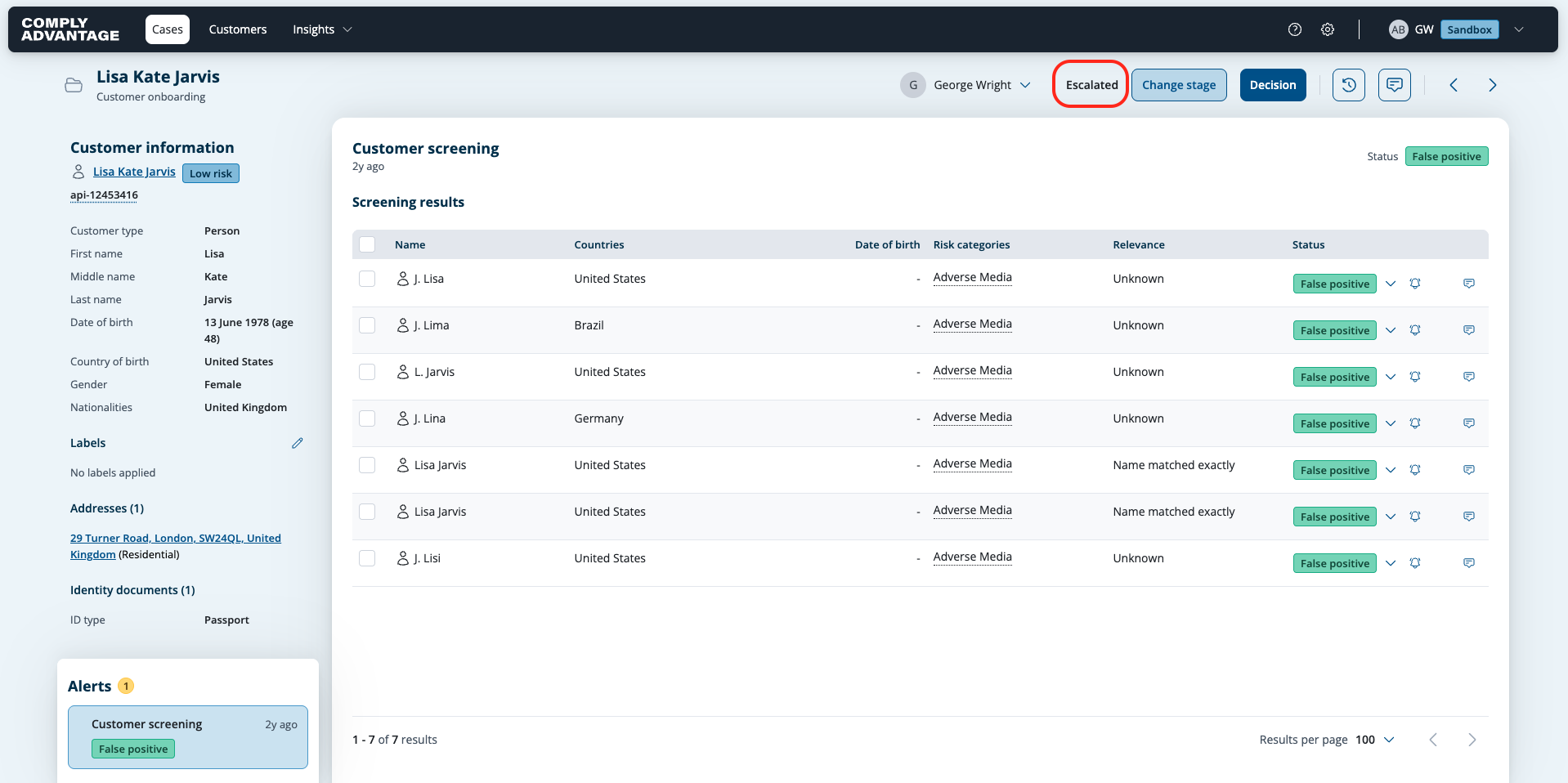
Reopened case with its stage shown in the header